
See how Genesis works.
Short walkthroughs of how Genesis turns business requirements into complete applications, keeps engineering context in Context Memory and takes each change through review and validation.
Learn Dalfin one step at a time.
45 videos in 6 topics, from finding your workspace to customising roles and permissions.
No walkthroughs match your search.
Getting started
Find your workspace and learn what Dalfin can do.
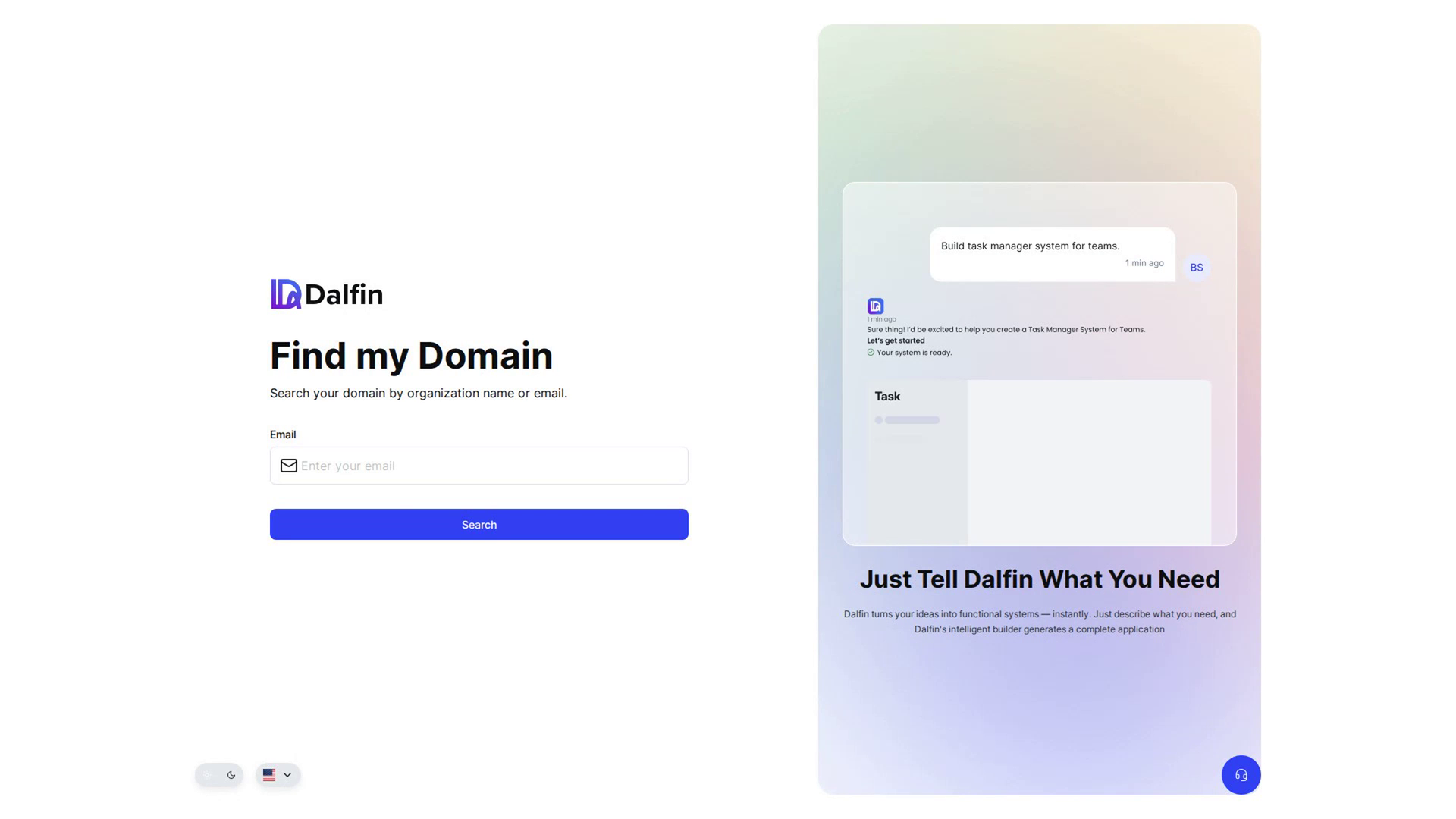
Find your organisation’s domain
Look up your organisation’s Dalfin address using your email.
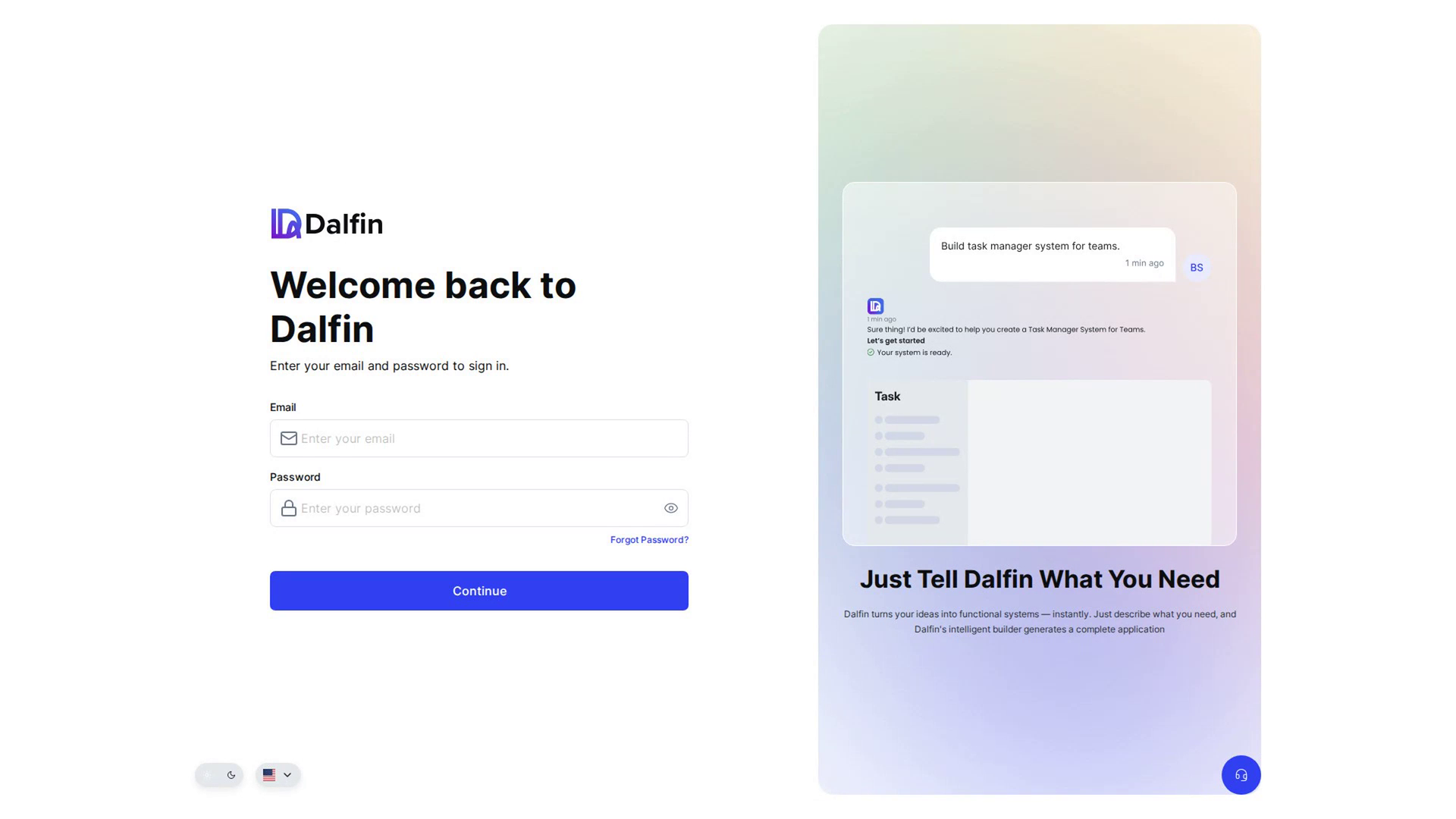
About Dalfin
What Dalfin is, and a tour of everything it does, from describing an app to running it.
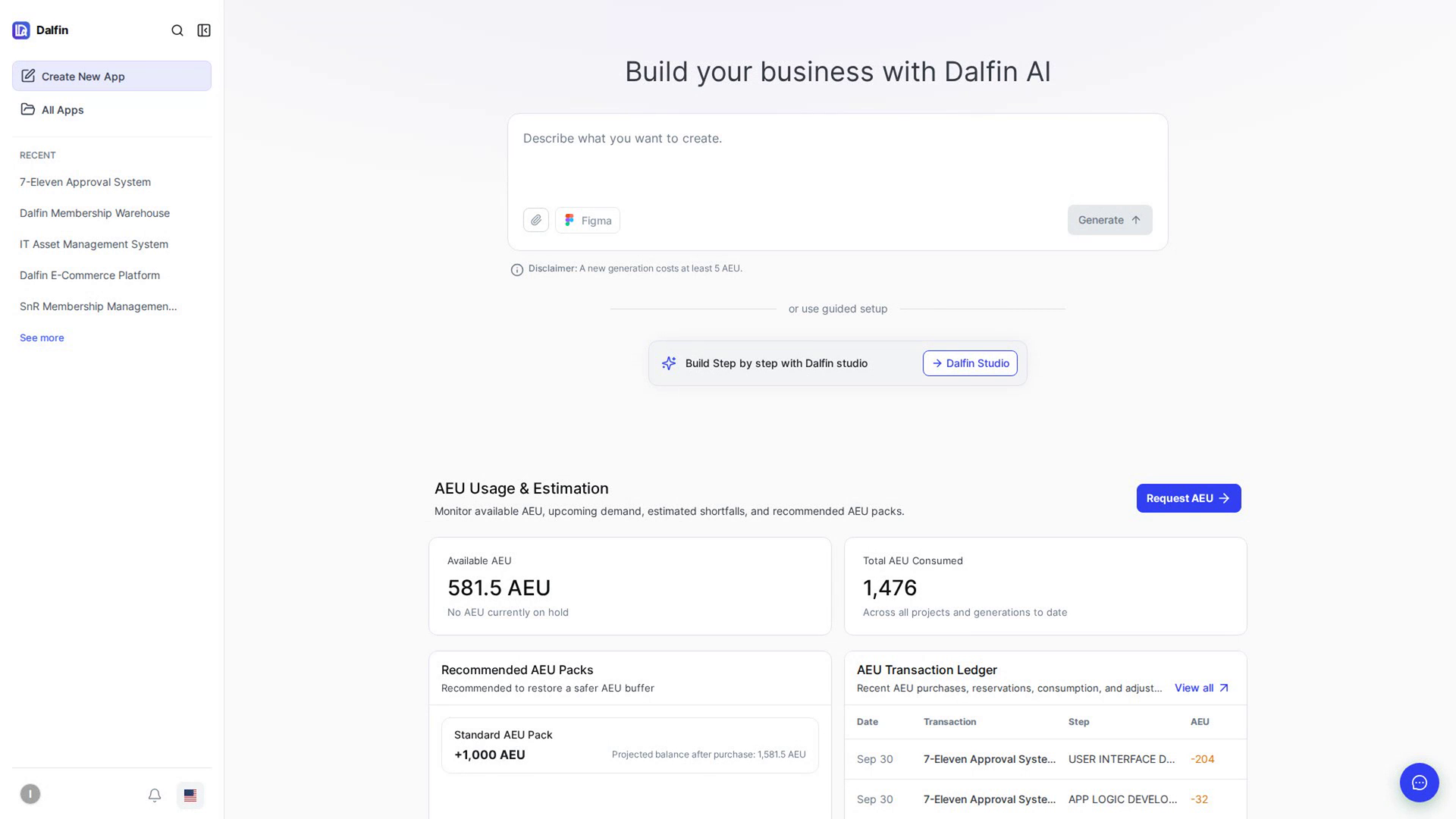
Tour of the Dalfin home
Find your way around the Dalfin home: the sidebar, notifications, language and your account.
Build your first app
From describing an app to publishing and managing it.
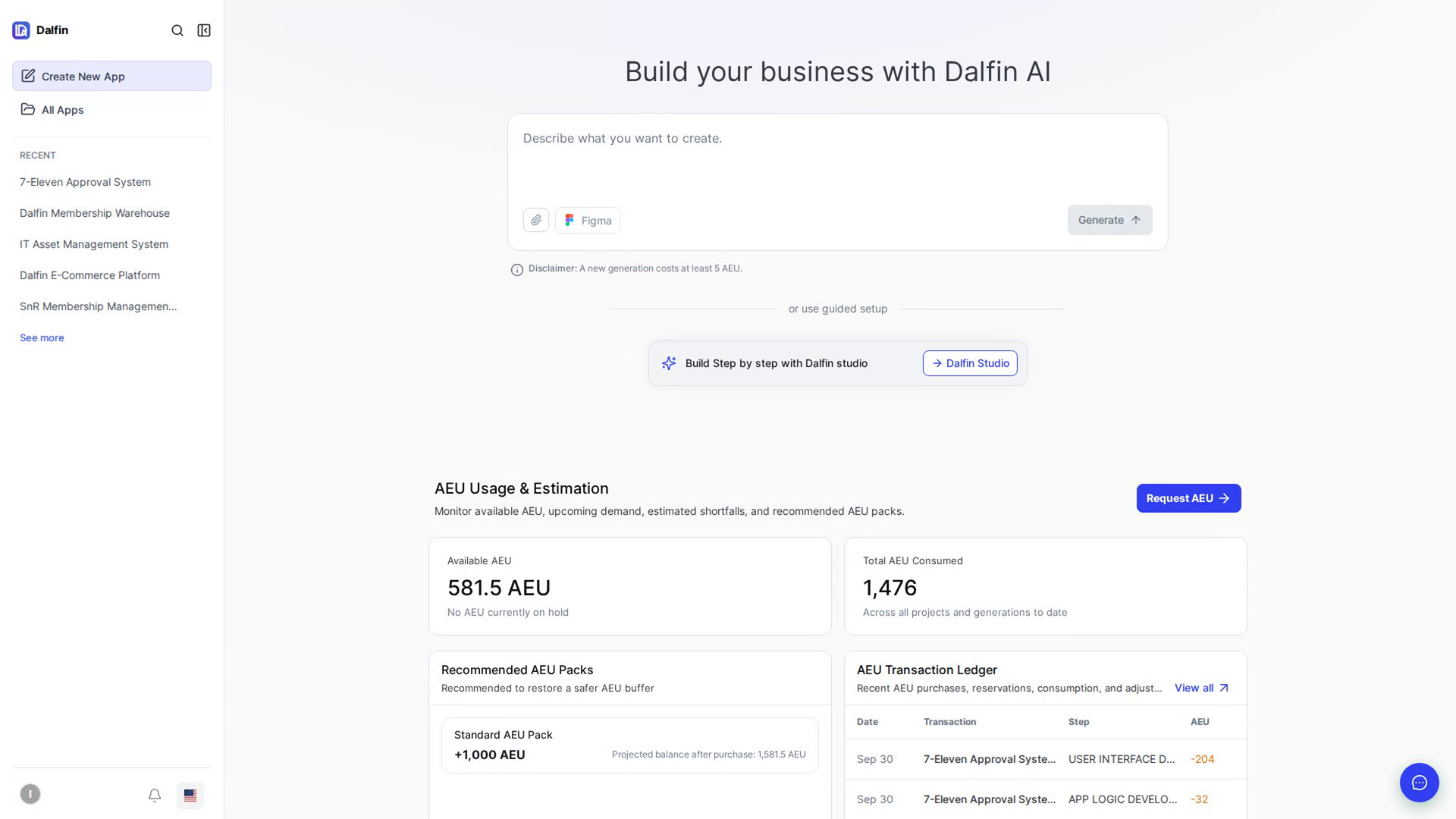
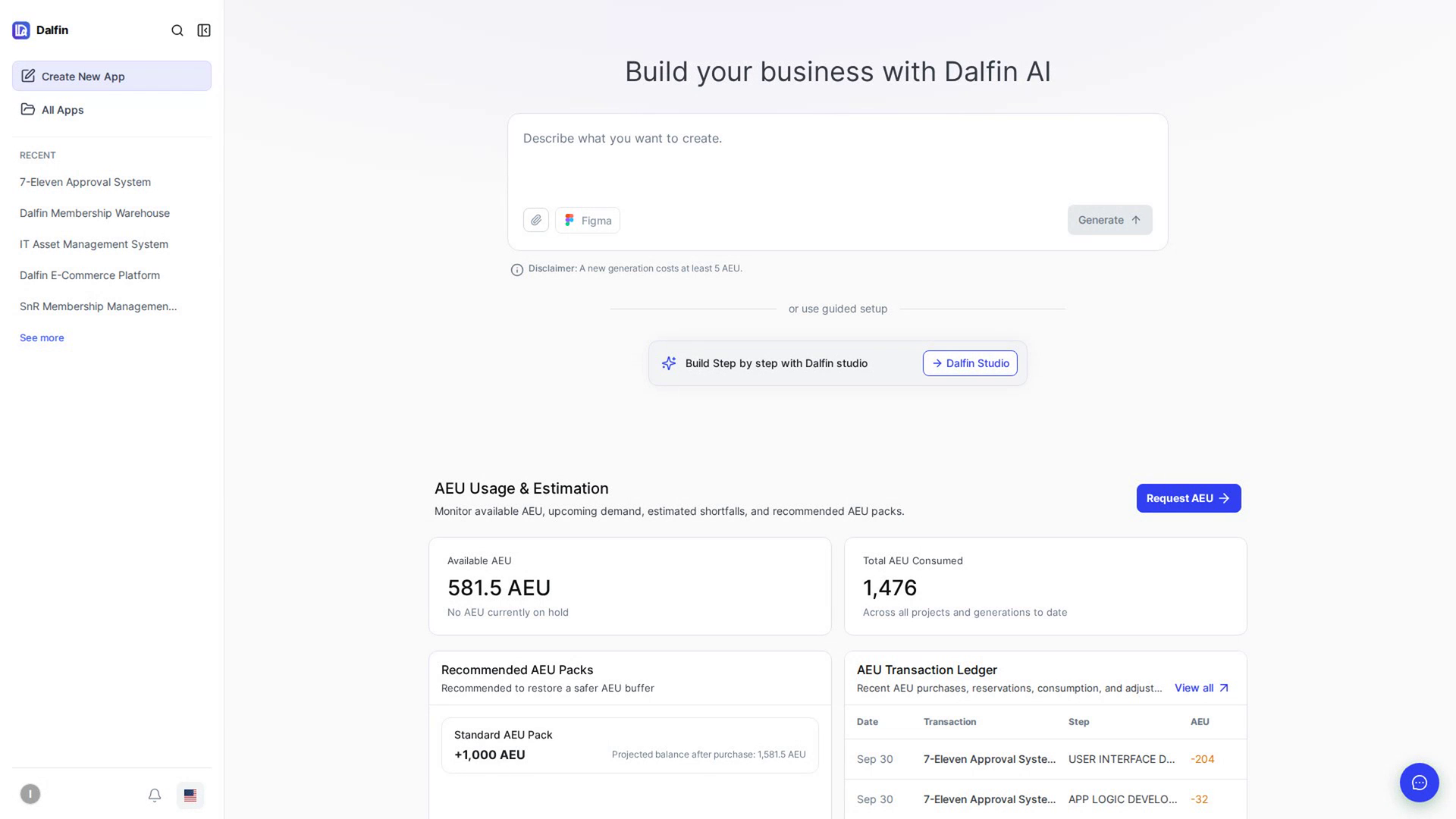
Create an app from a description
Describe the app you want and let Dalfin build it.
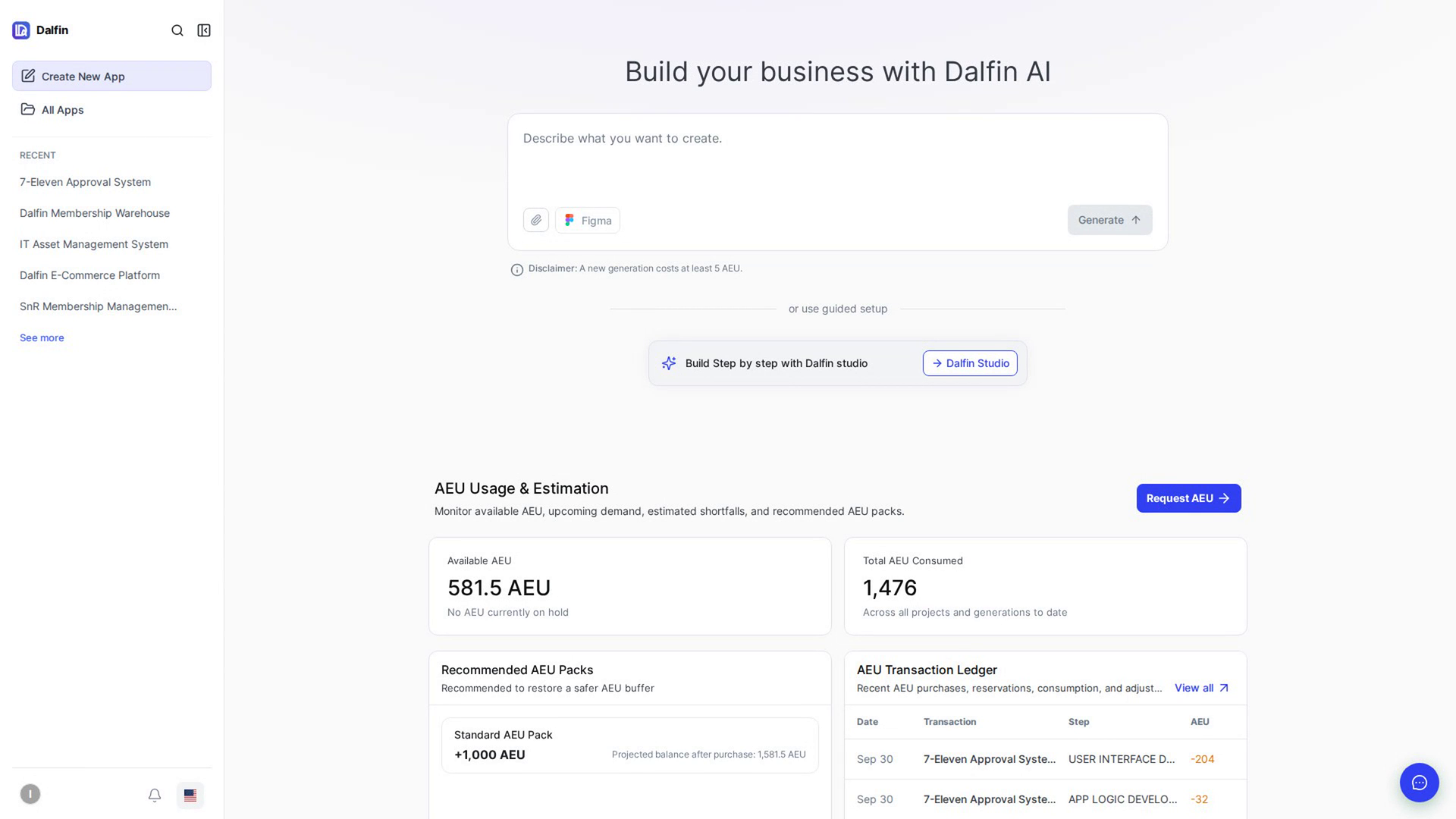
Attach requirements, designs or screenshots
Give Dalfin your requirements documents, design references or screenshots.
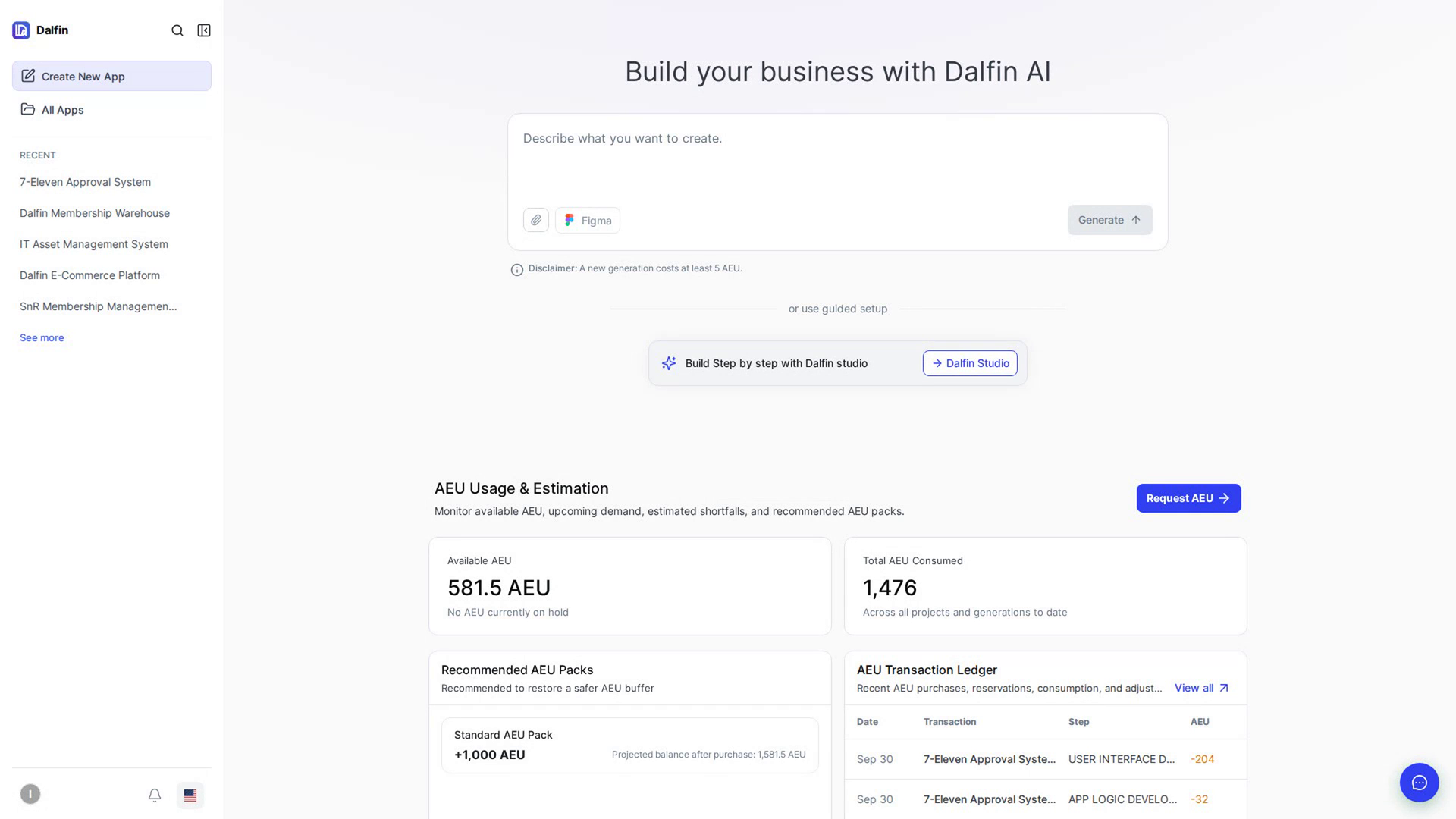
Import a Figma design
Build your app from a Figma design.
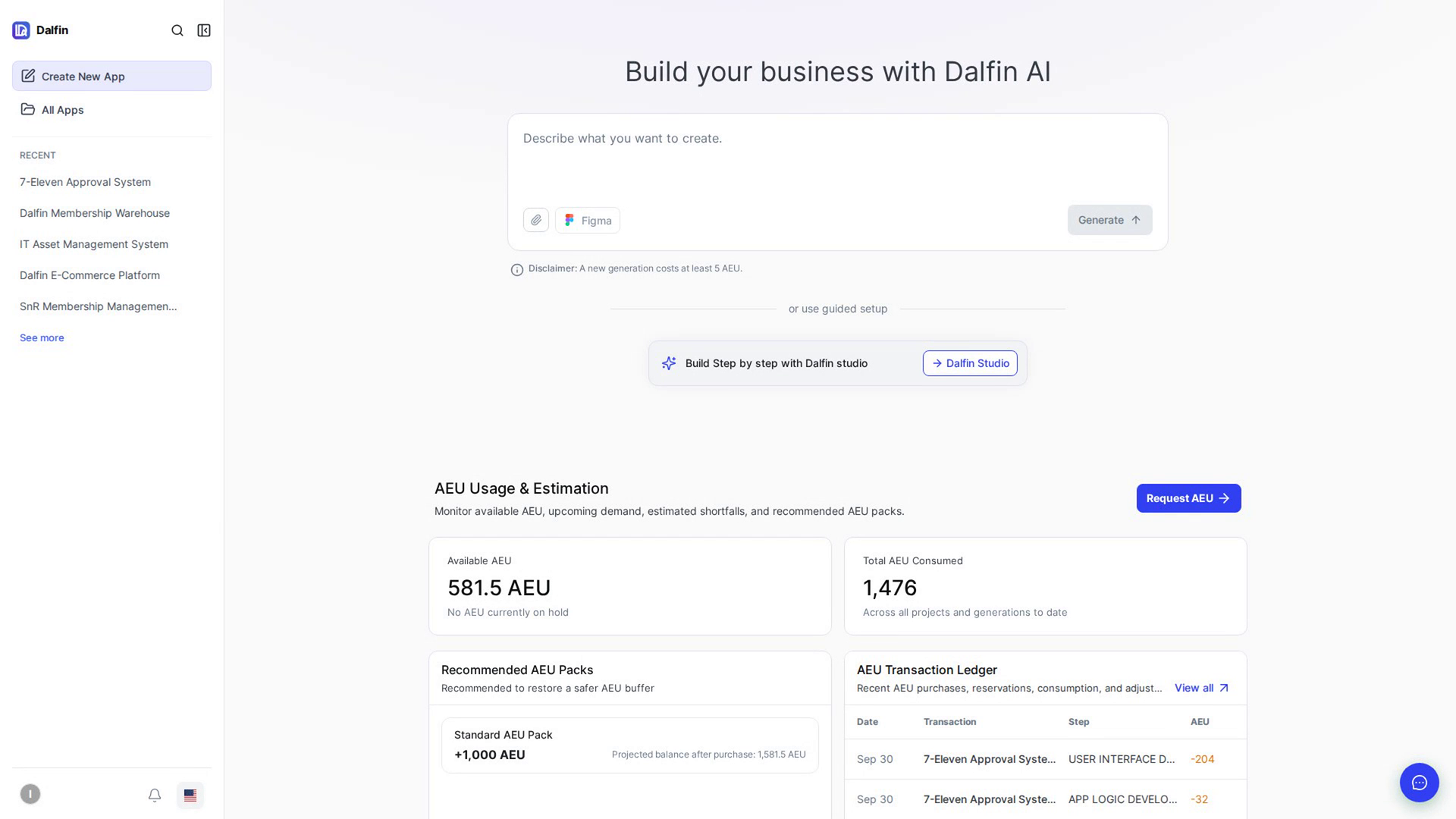
Build step by step with Dalfin Studio
Build a new app by answering a few simple questions in Dalfin Studio.
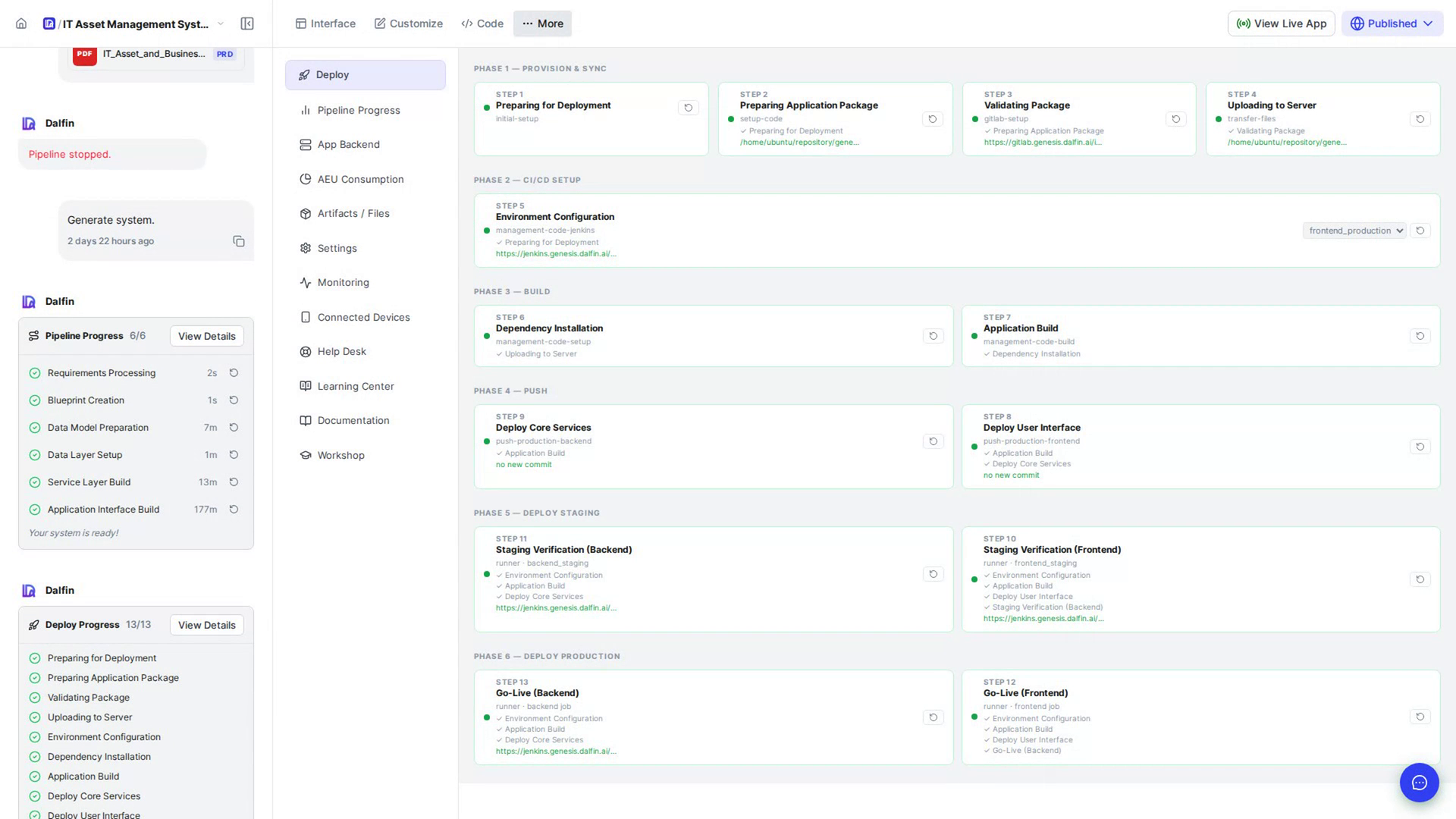
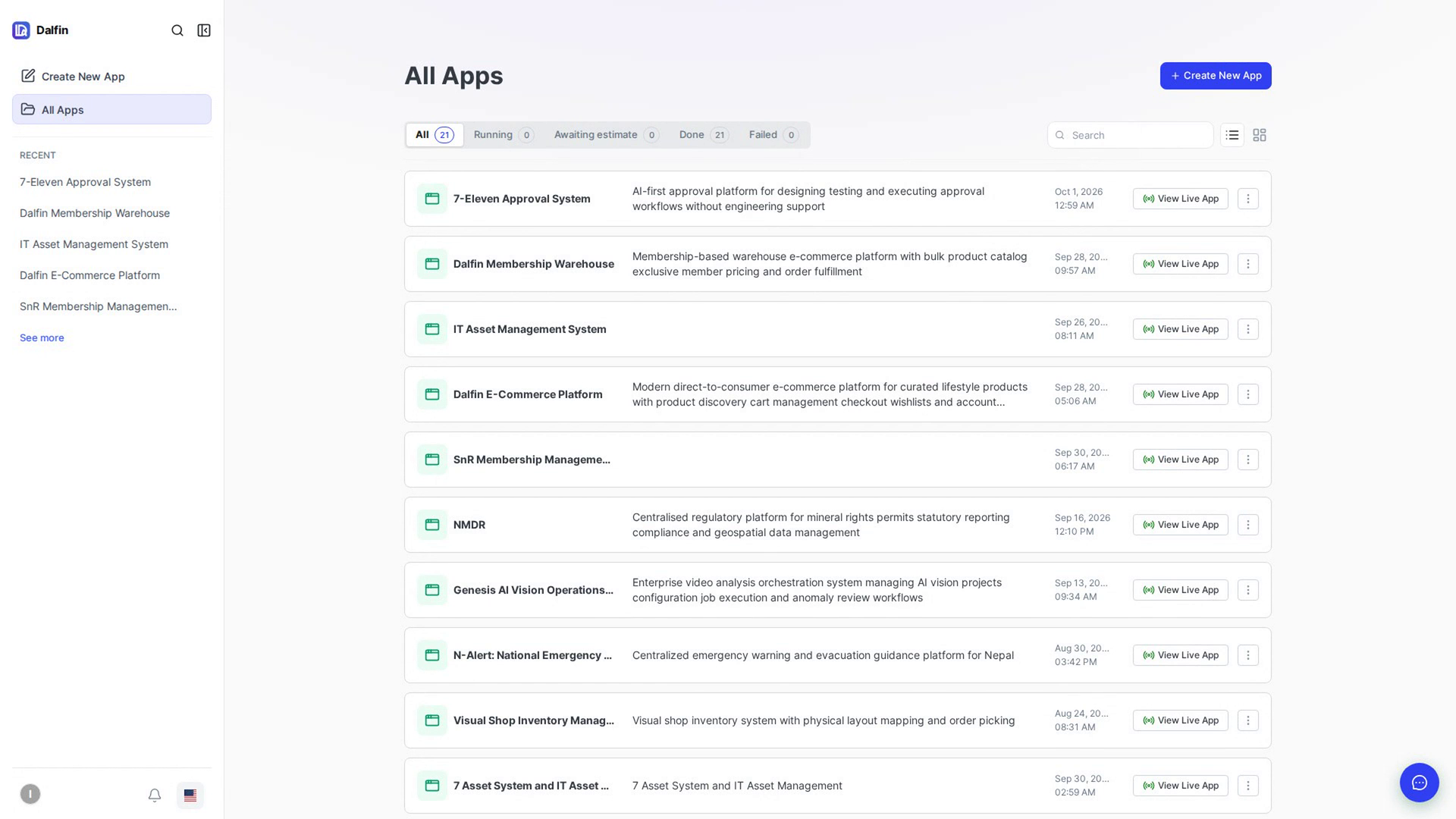
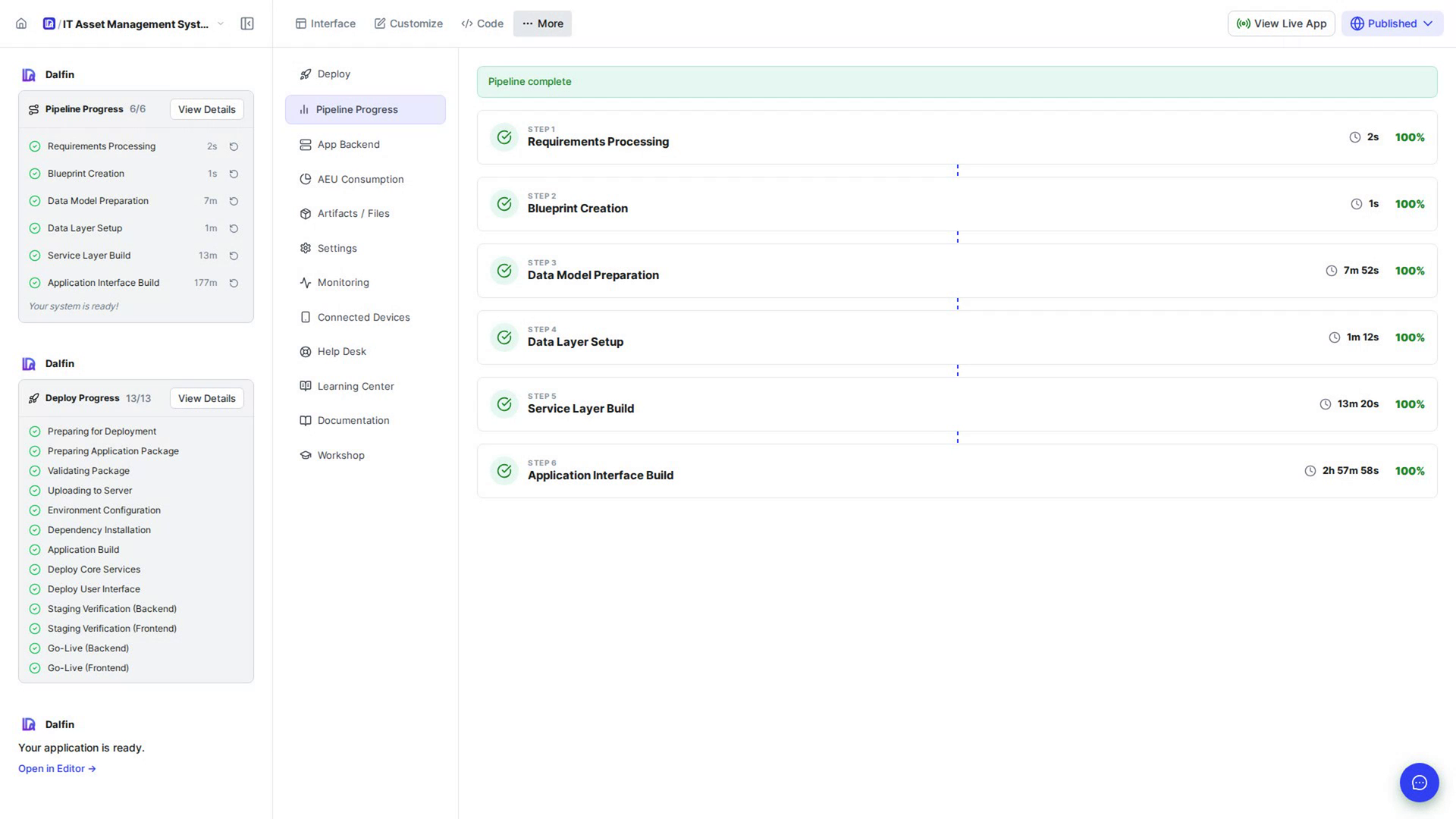
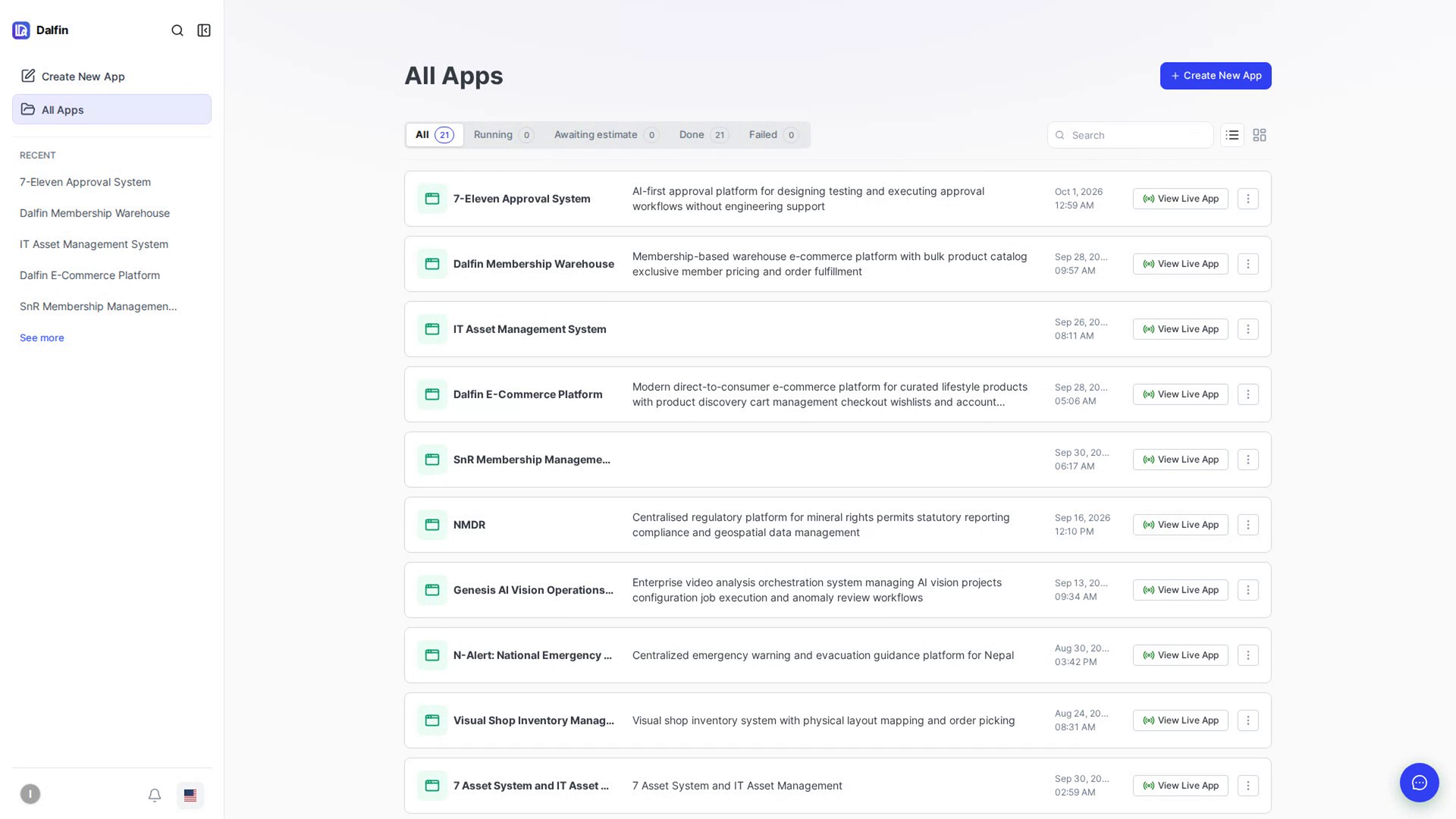
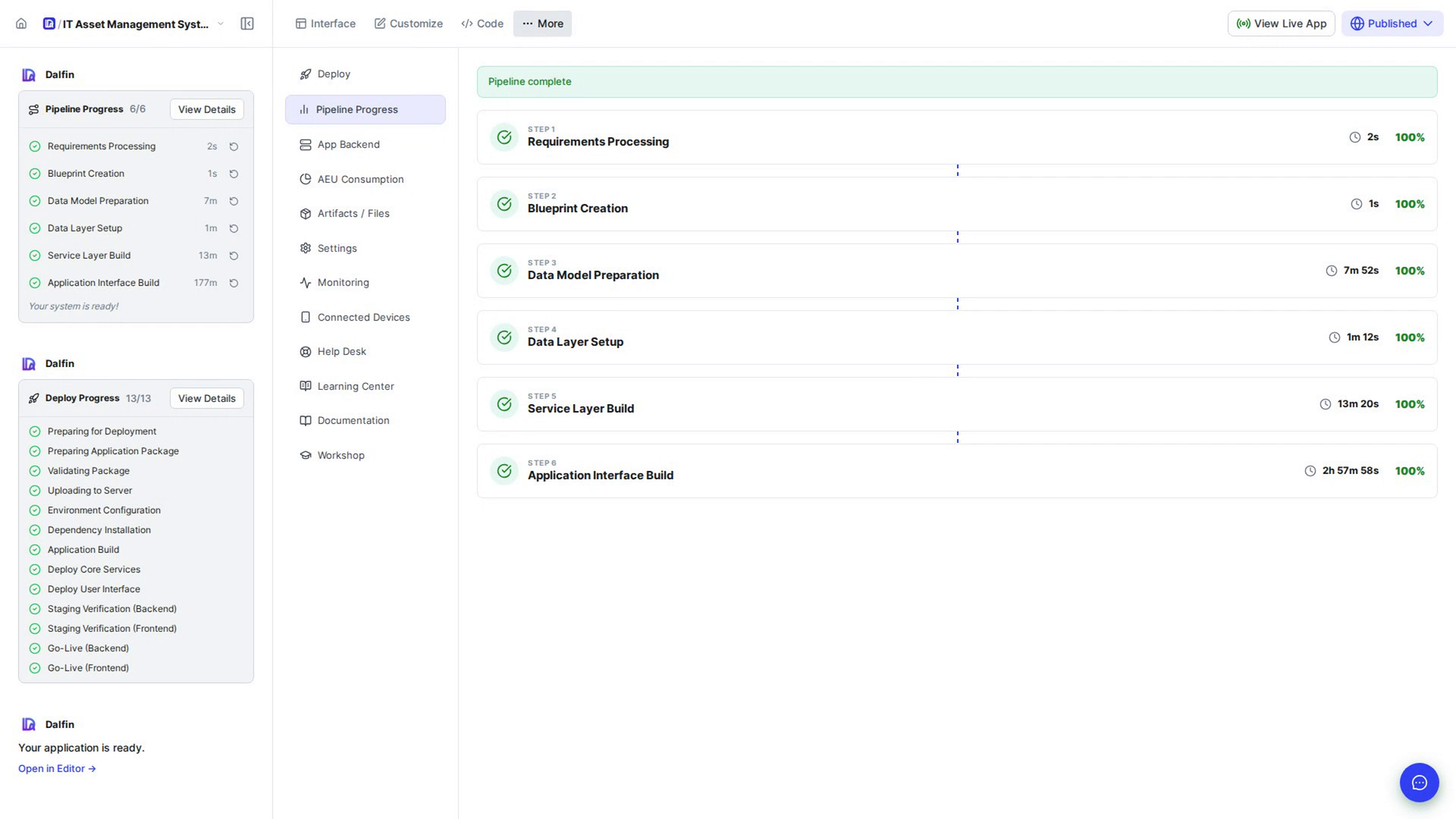
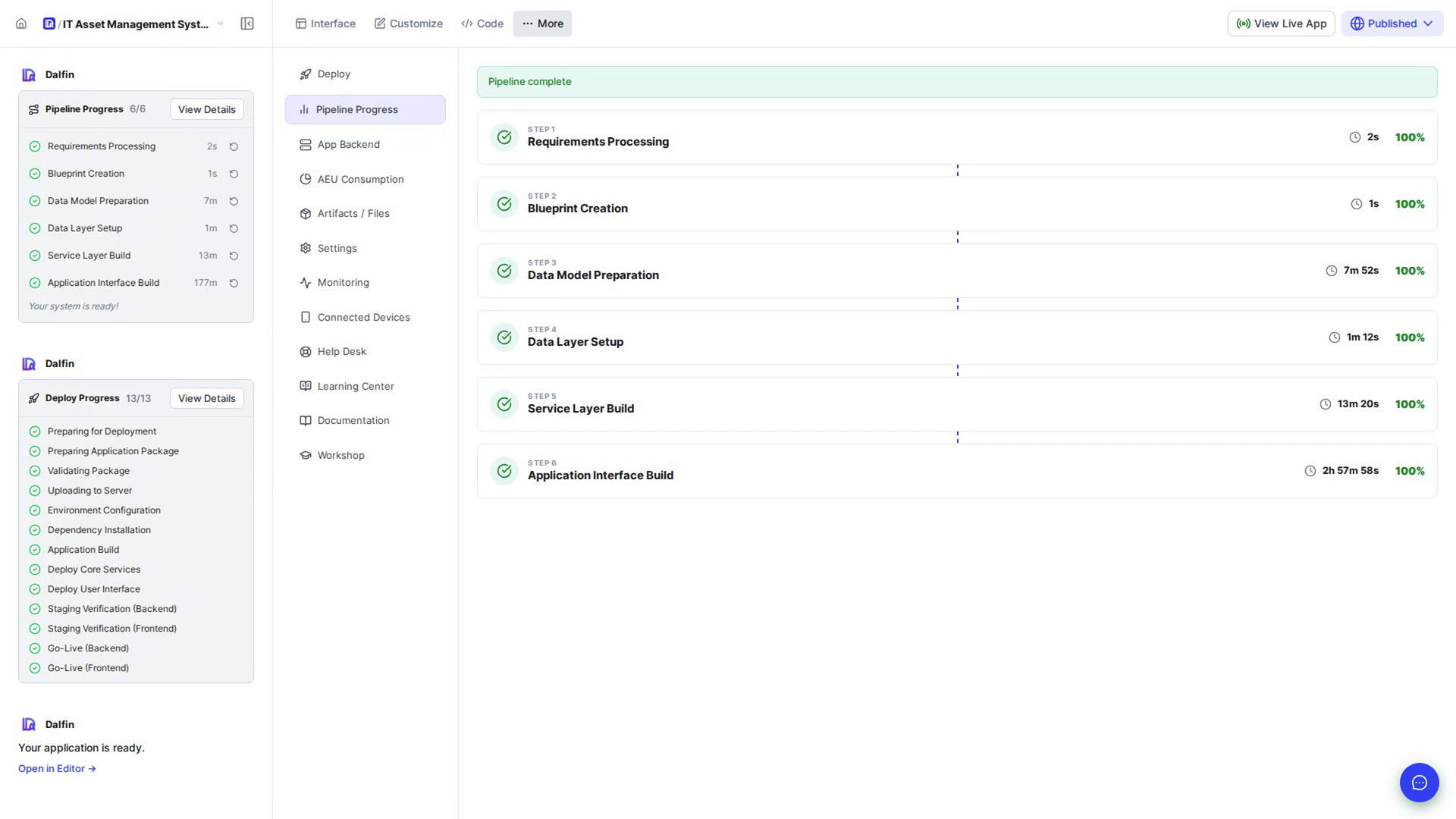
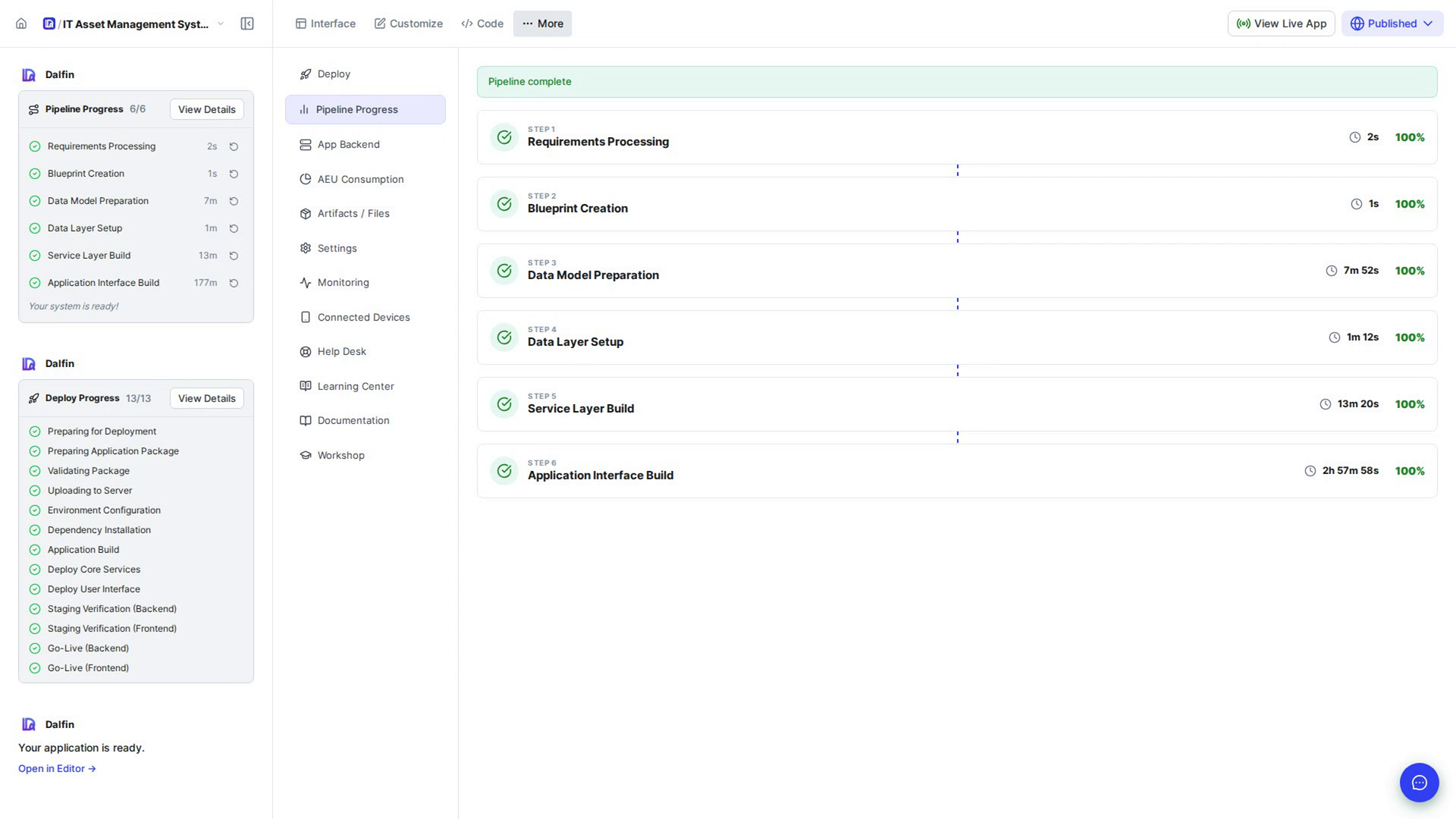
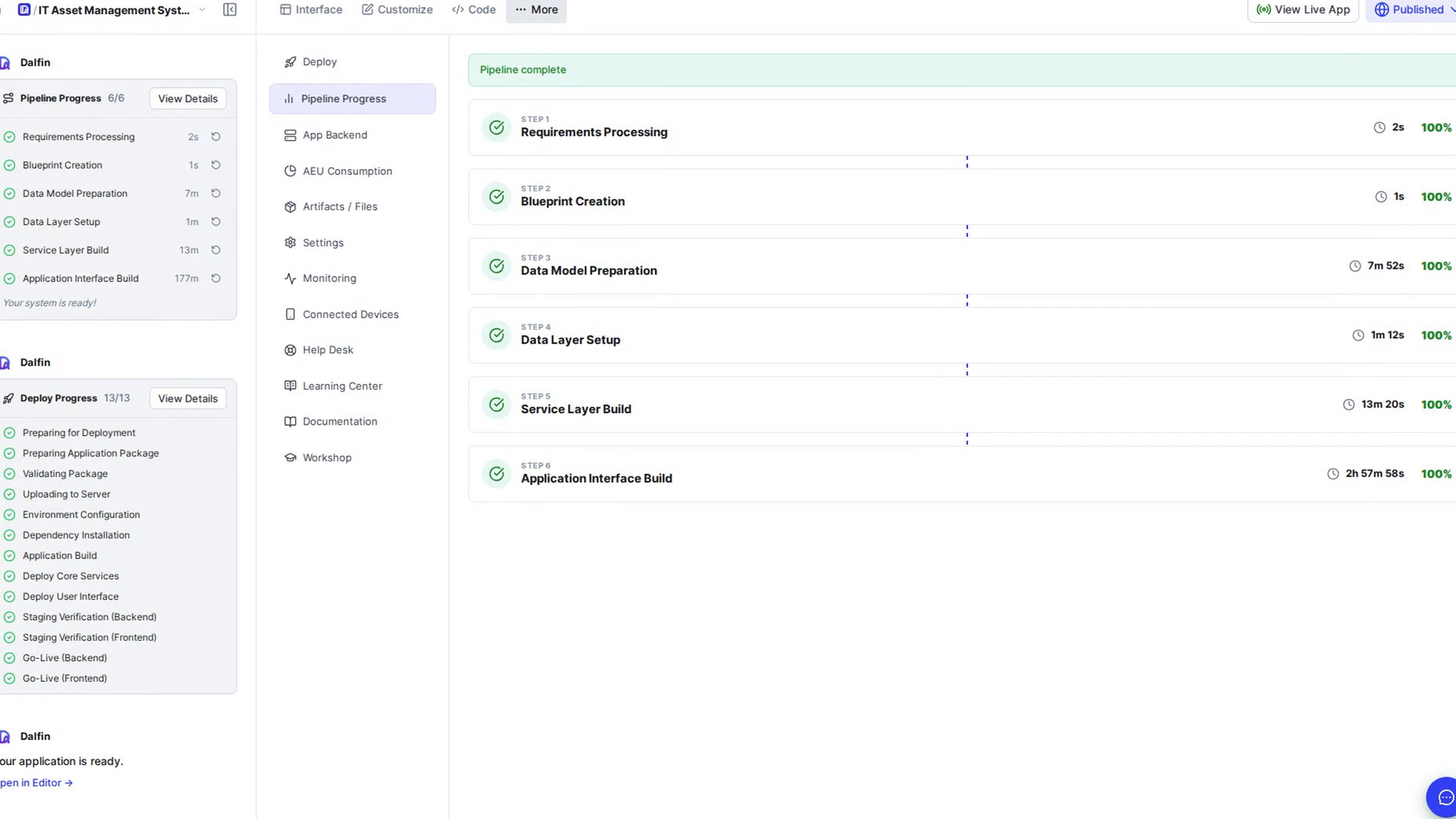
Follow the build: Pipeline Progress
Watch each stage of your app being built, and retry a stage if it fails.
Explore your app: Interface preview
Preview your app on desktop, tablet and mobile sizes, and open it in another tab.
Publish your app
Publish your app to staging or production and share its address.
Deployment steps in detail
Follow your app from provisioning through build, push and deployment.
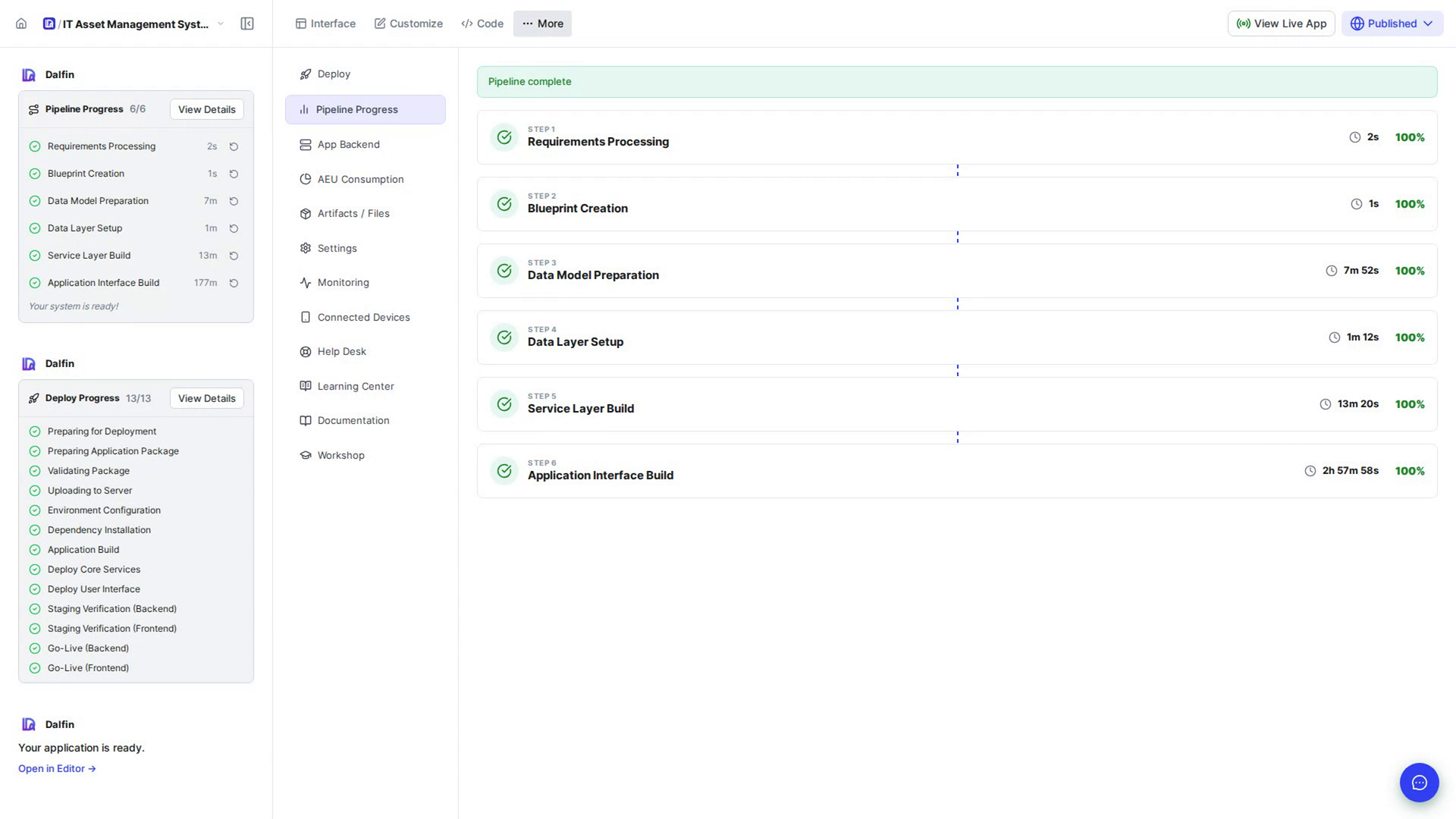
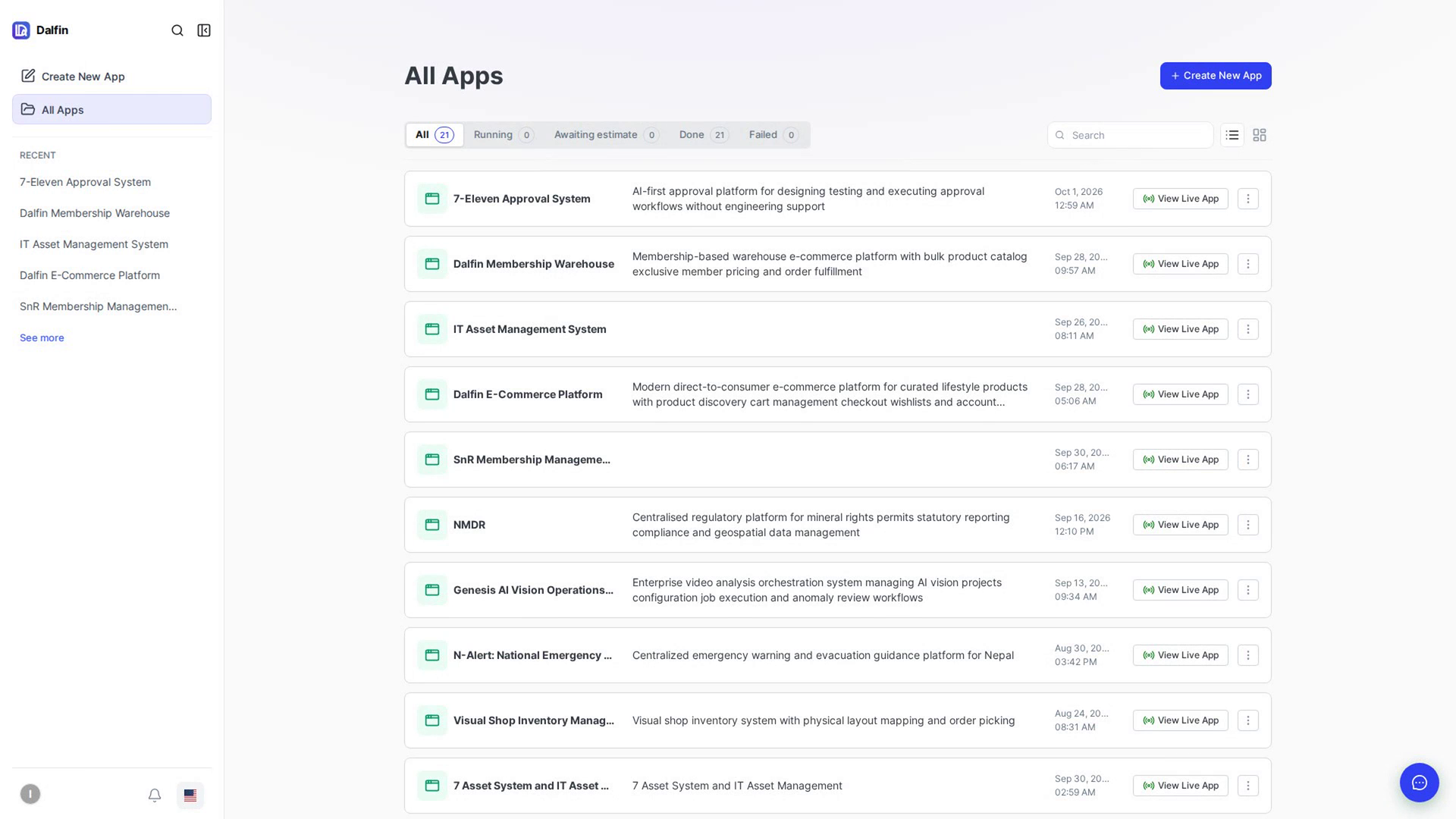
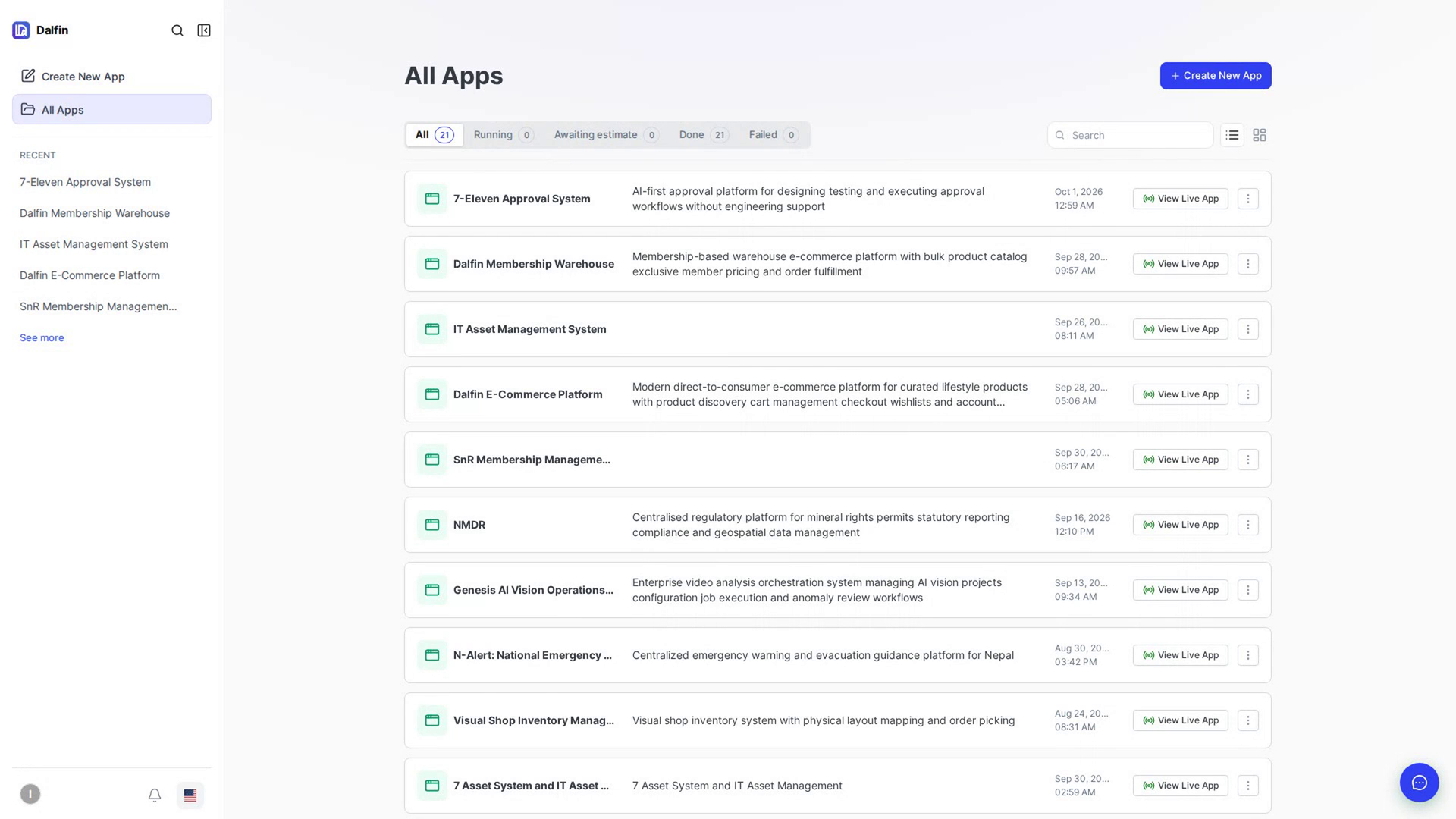
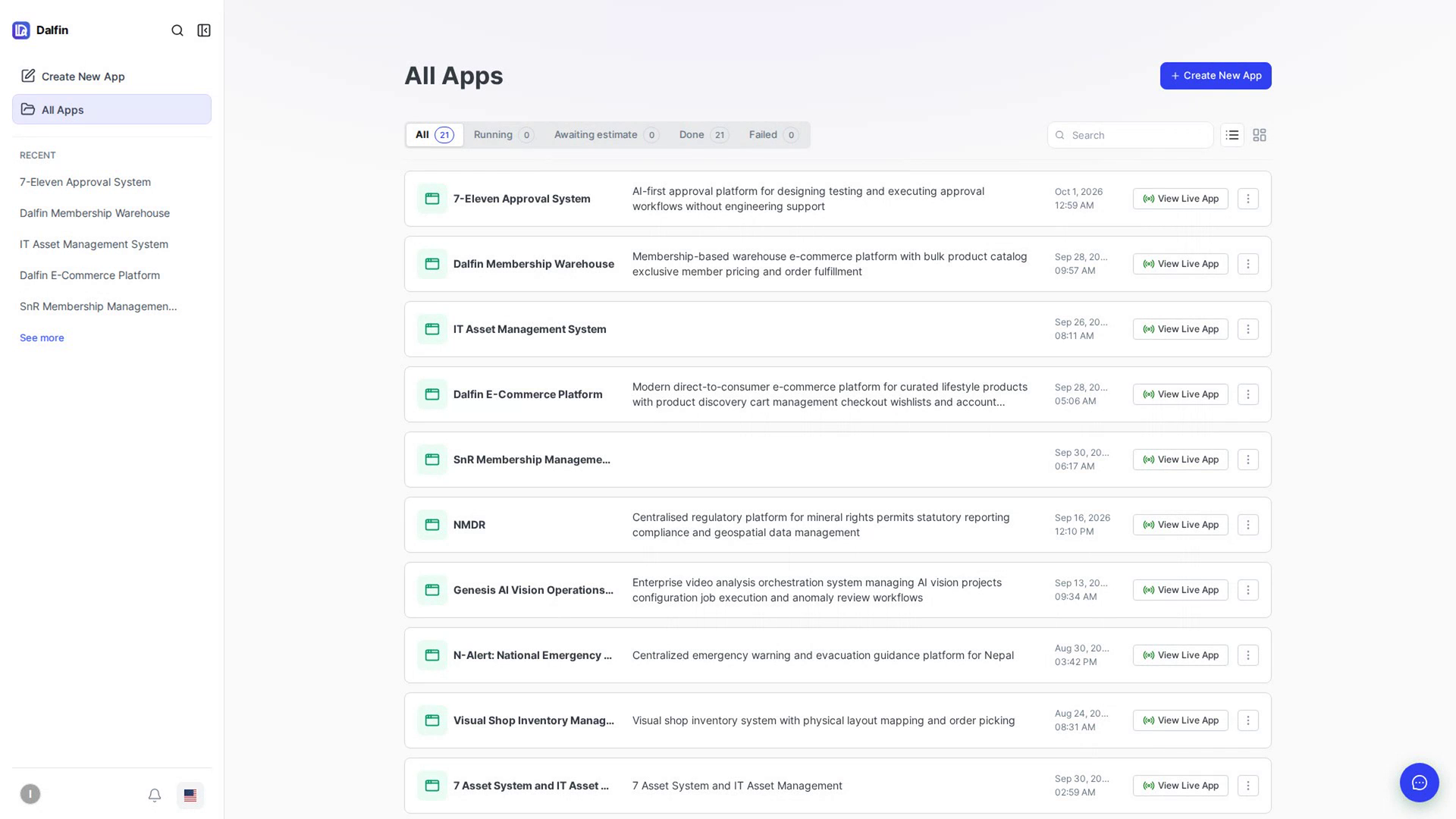
Manage your apps (All Apps)
Find, favourite, share, rename and delete your apps.
Connect a custom domain to an app
Give one app its own domain or subdomain.
Artifacts and files
Open and download the files produced for your app.
Code (in-browser IDE)
Browse and edit your app’s source code in the browser.
App backend
See the API documentation for your app’s backend.
Monitoring
Keep an eye on a running app with its monitoring dashboard.
Explore and edit your app’s code
Explorer, search, editing with auto-save, Problems, Output and Terminal.
Run your app next to the code (live preview)
The Preview tab, its logs and the Dalfin Preview view.
Change your app with Claude Code
Start a Claude Code session in the Code tab and ask about or change the code.
Customise your app
Style, structure, data, access and behaviour.
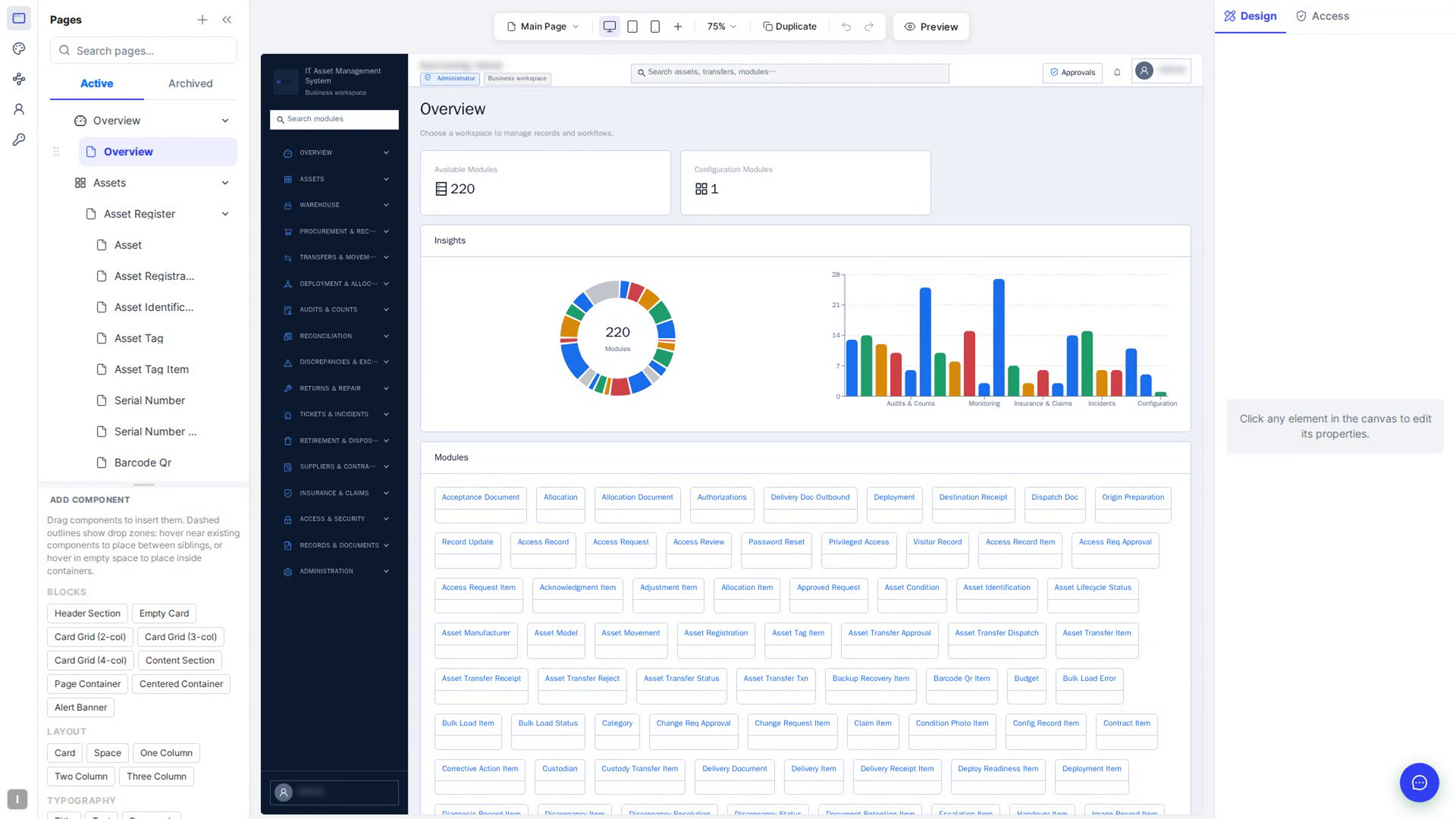
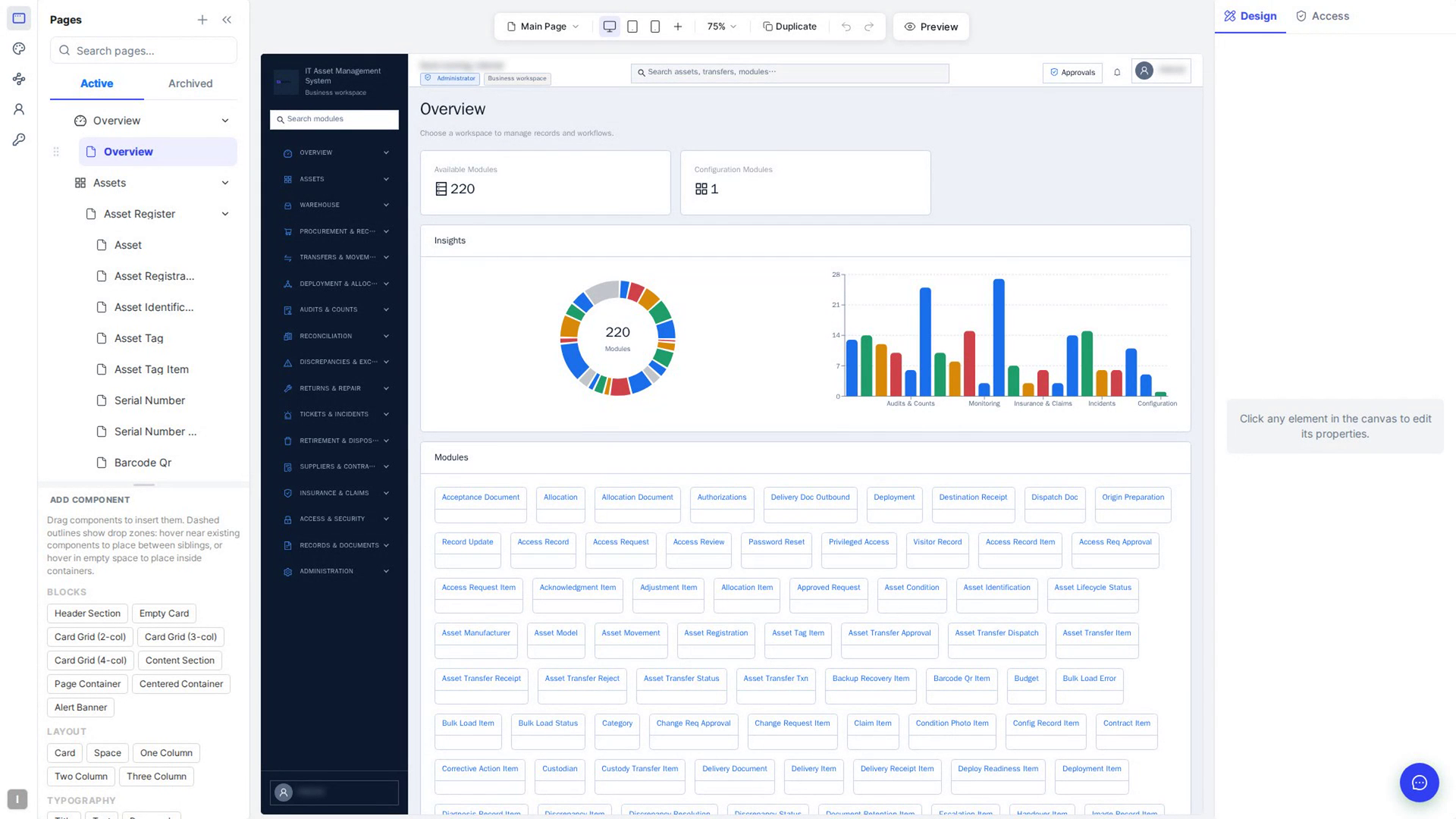
Open the editor and find your way around
Open Customize and learn the parts of the editor.
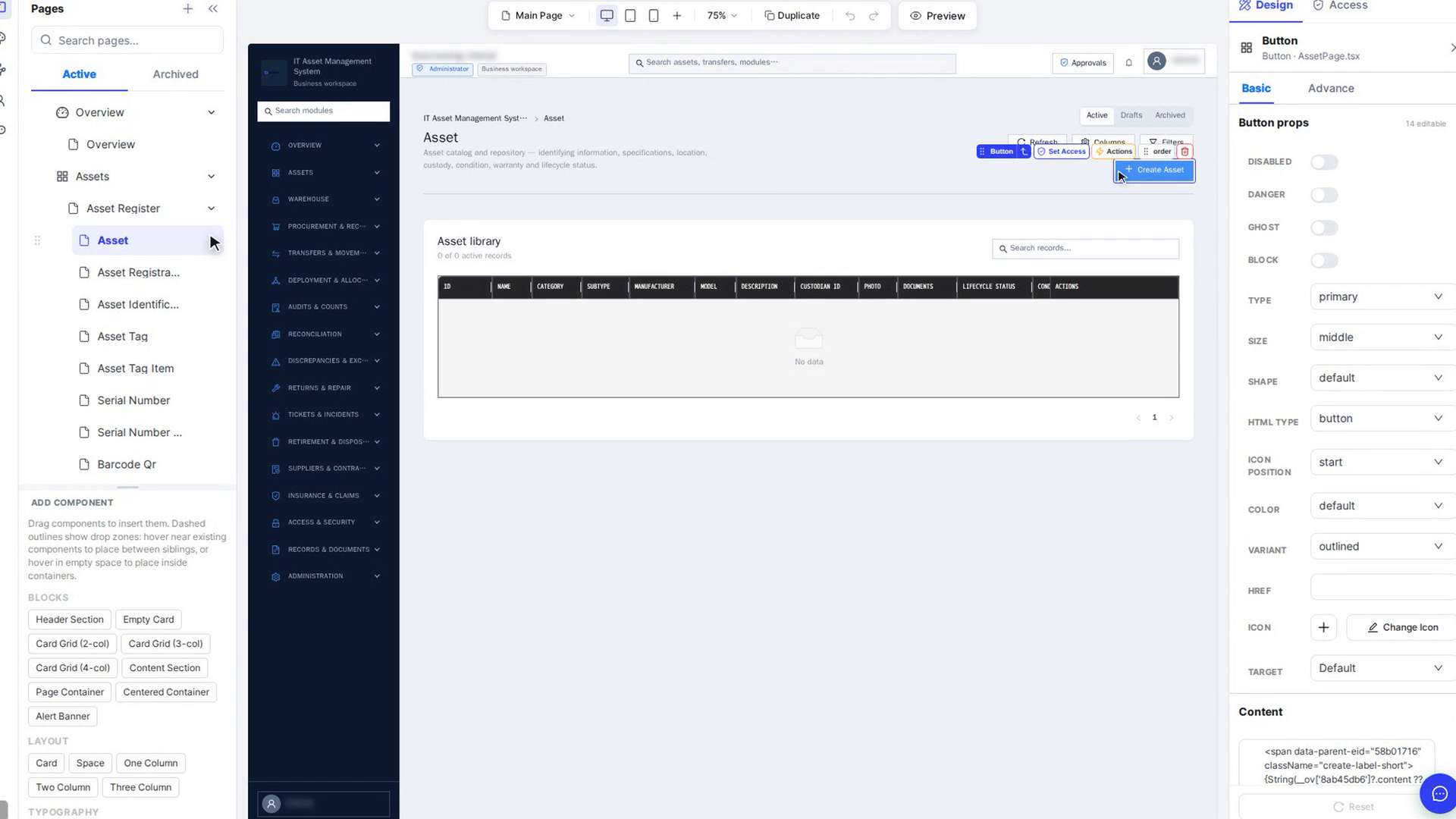
Style elements
Change how any element looks, per screen size.
Data model: the ER diagram
See your app’s tables and how they relate.
Page and element access
Choose which roles can see each page and element.
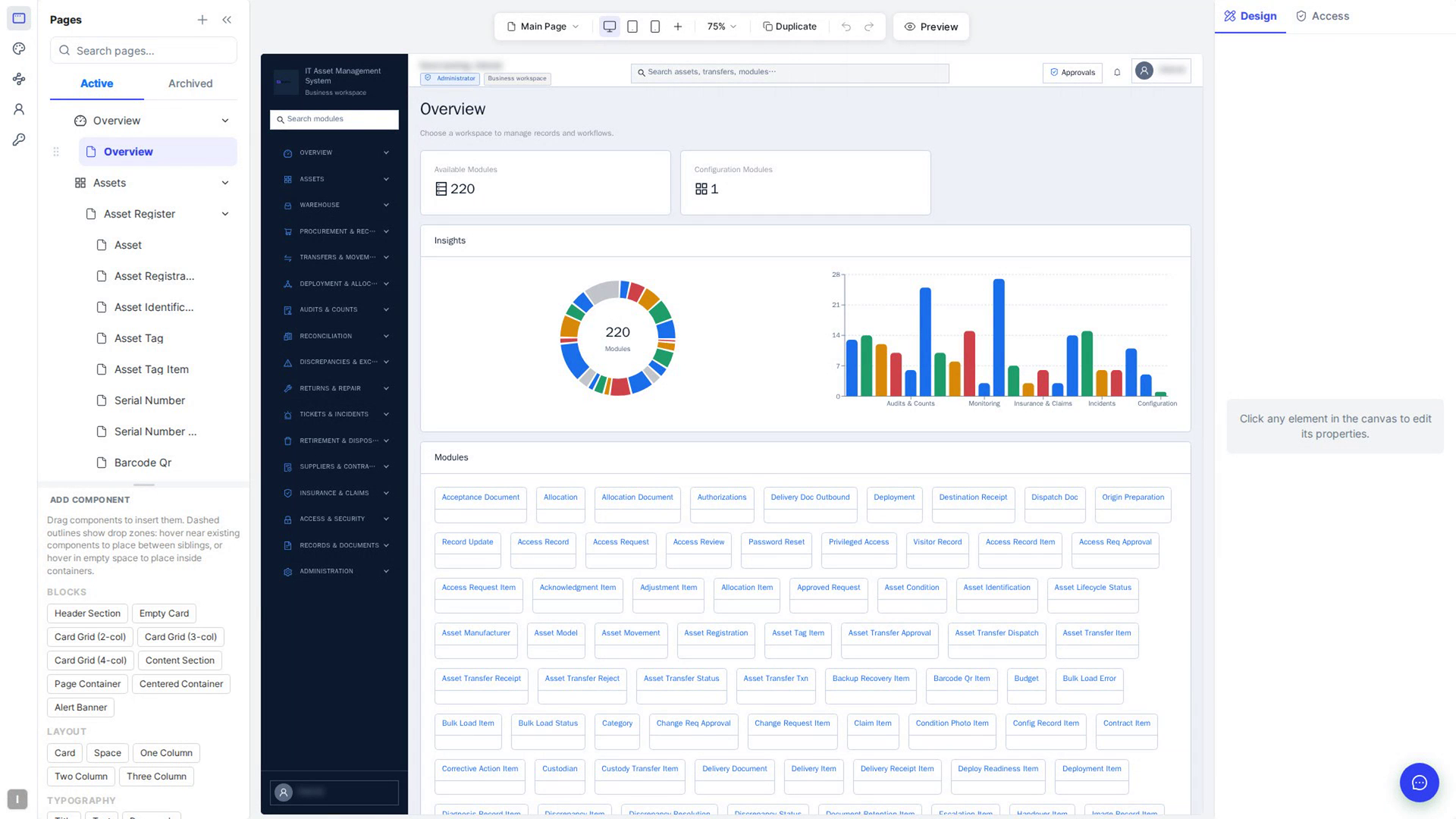
Theme your app
Set your app’s colours, fonts and component styles.
Preview and save your changes
Preview your app as a role and screen size, and keep your edits saved.
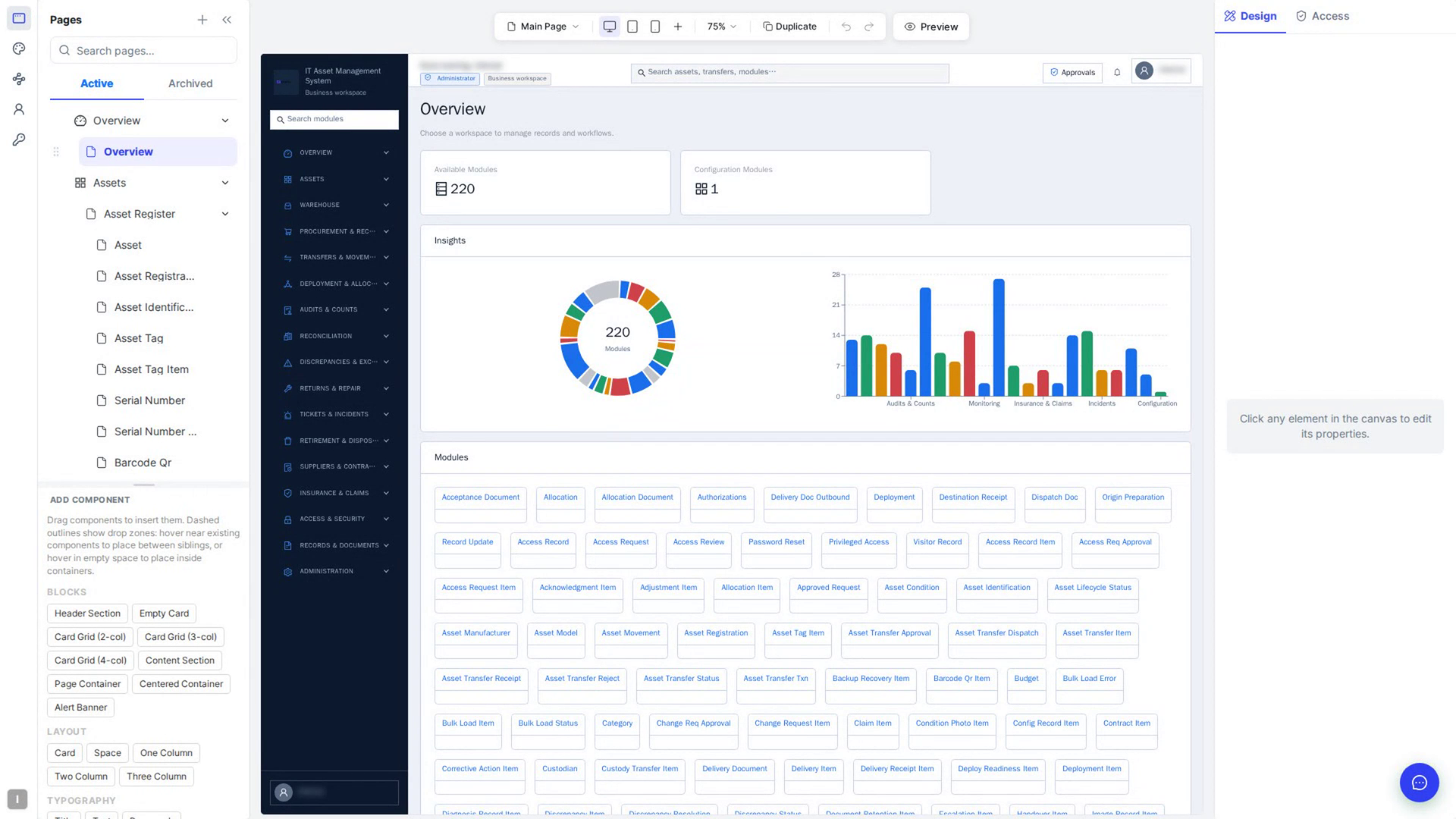
Duplicate a page
Copy a page, with or without its data tables.
User management in the editor
Manage your app’s users and departments from the editor.
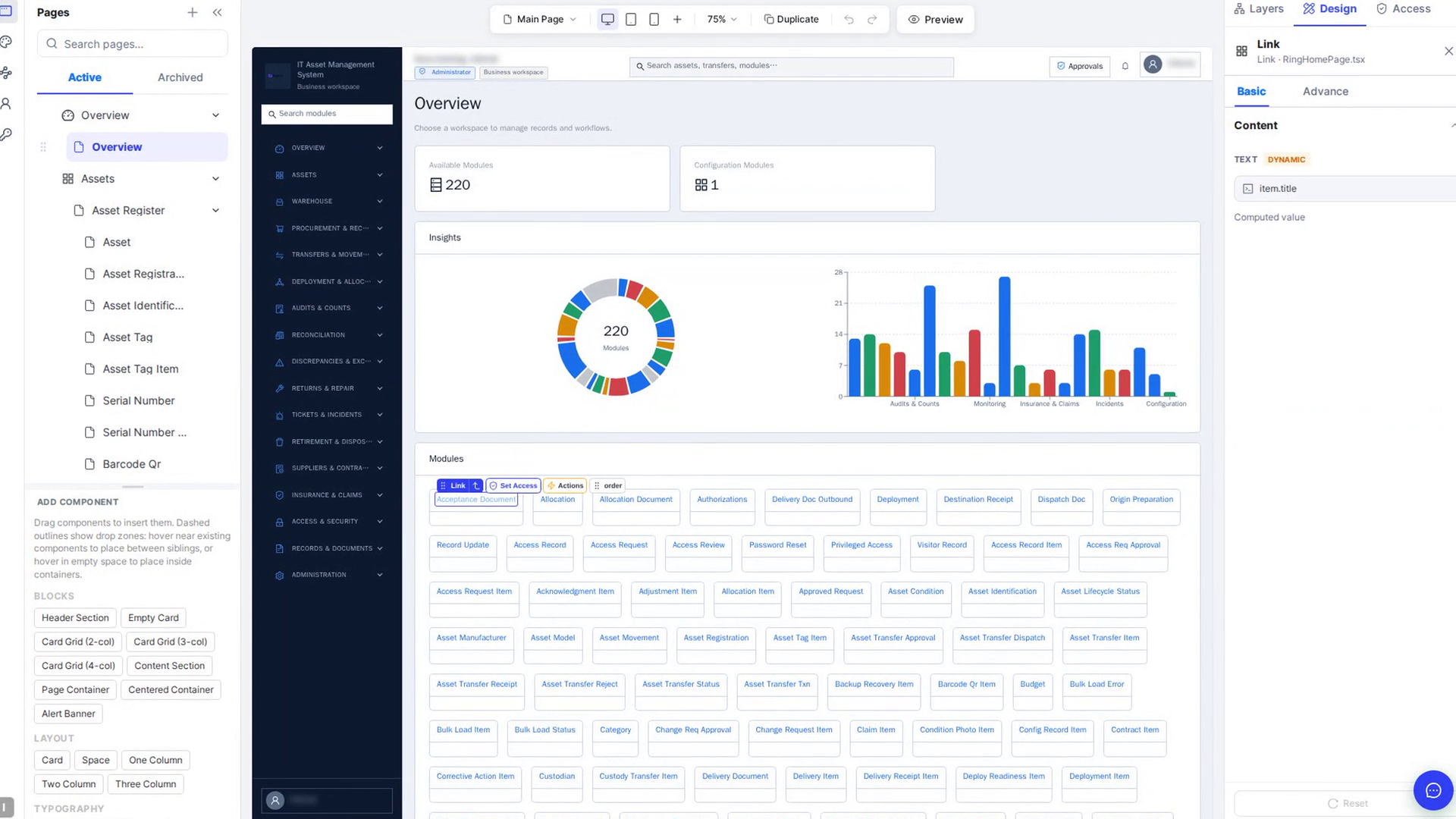
Select elements and use the selection chip
Select, multi-select and group elements; the chip’s quick actions.
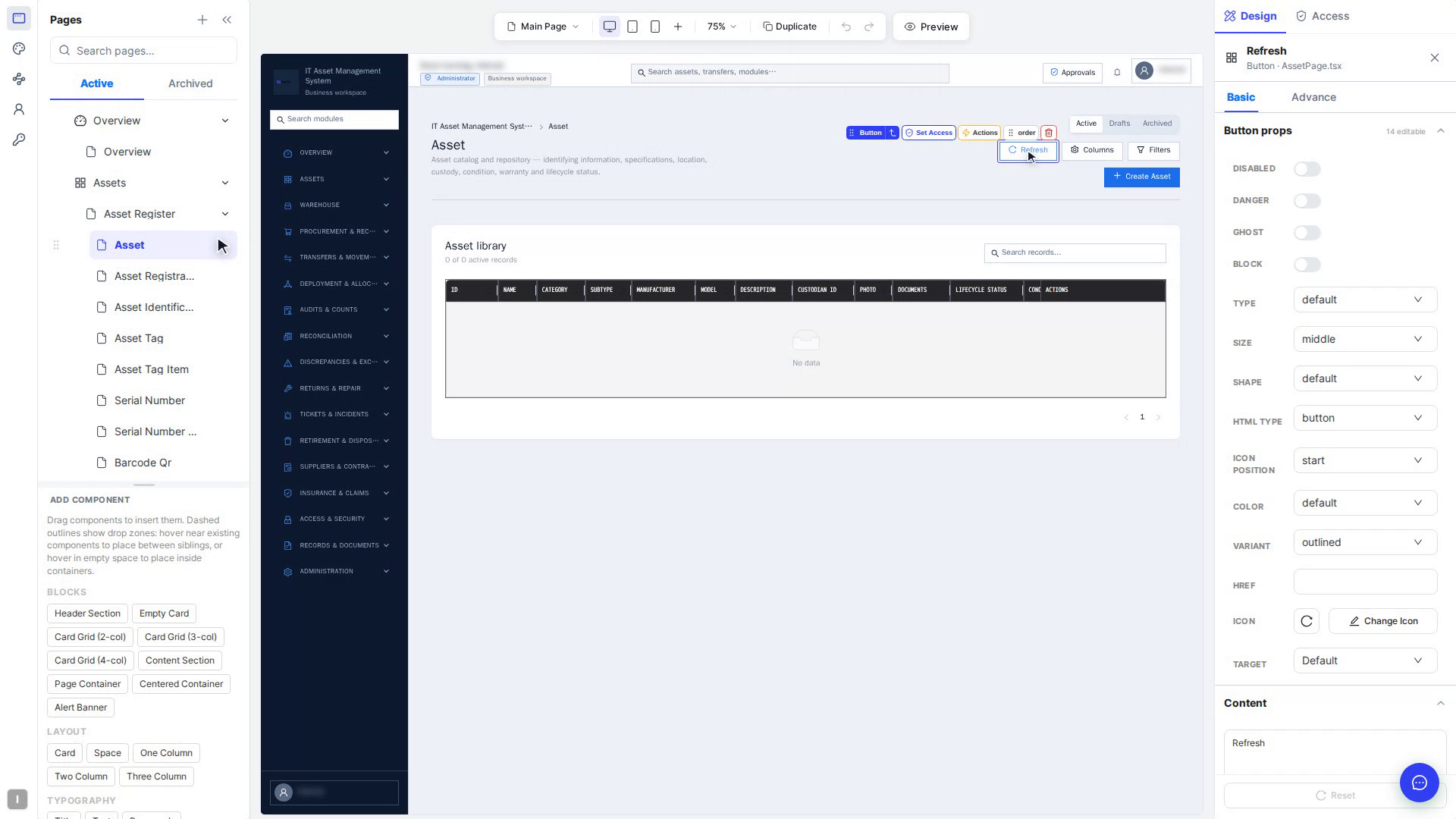
Change element properties (Basic tab)
An element’s props, text, rich content and icon.
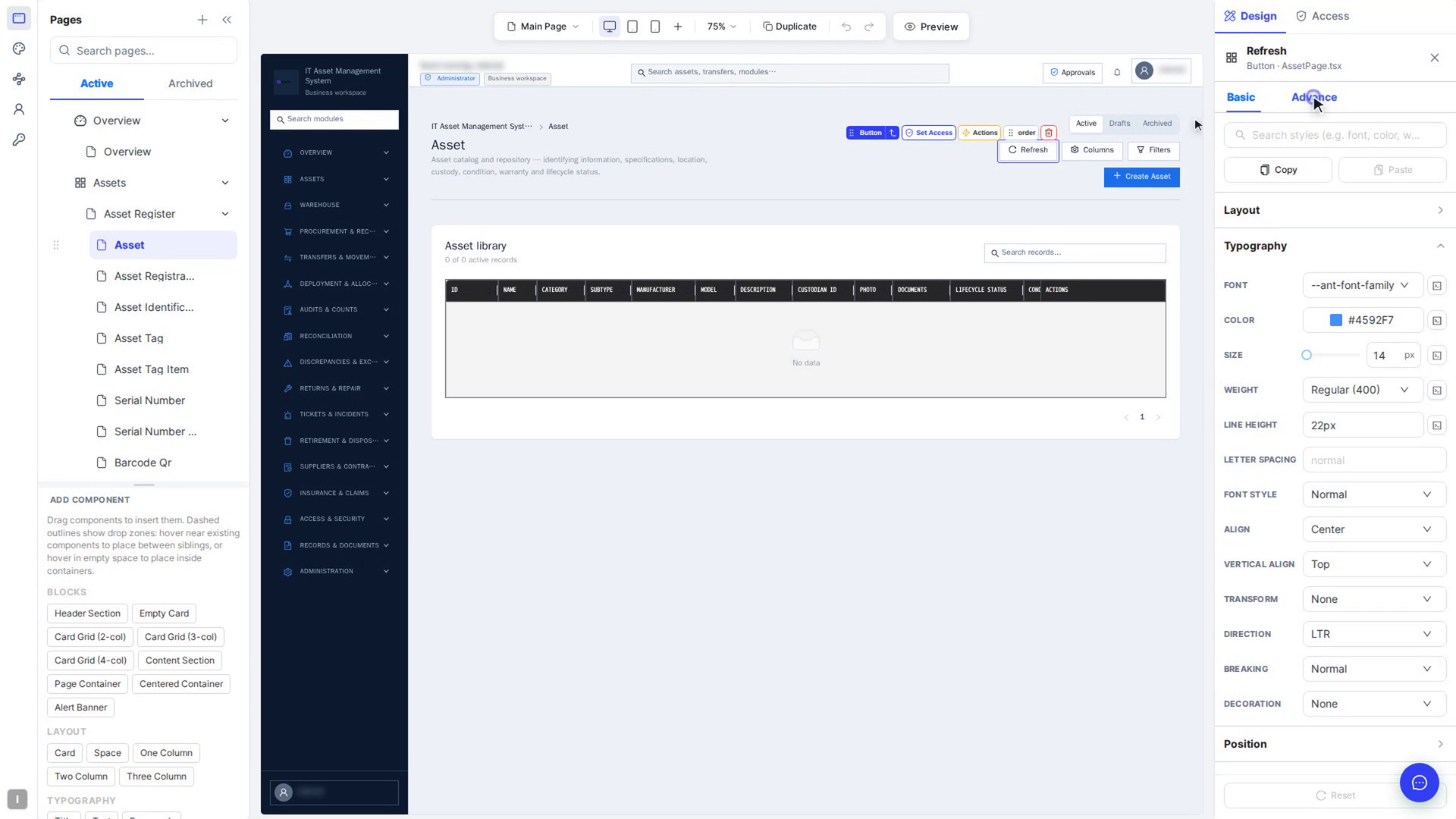
Style elements in detail (Advance tab)
Search, copy/paste, CSS variables and the ten style sections.
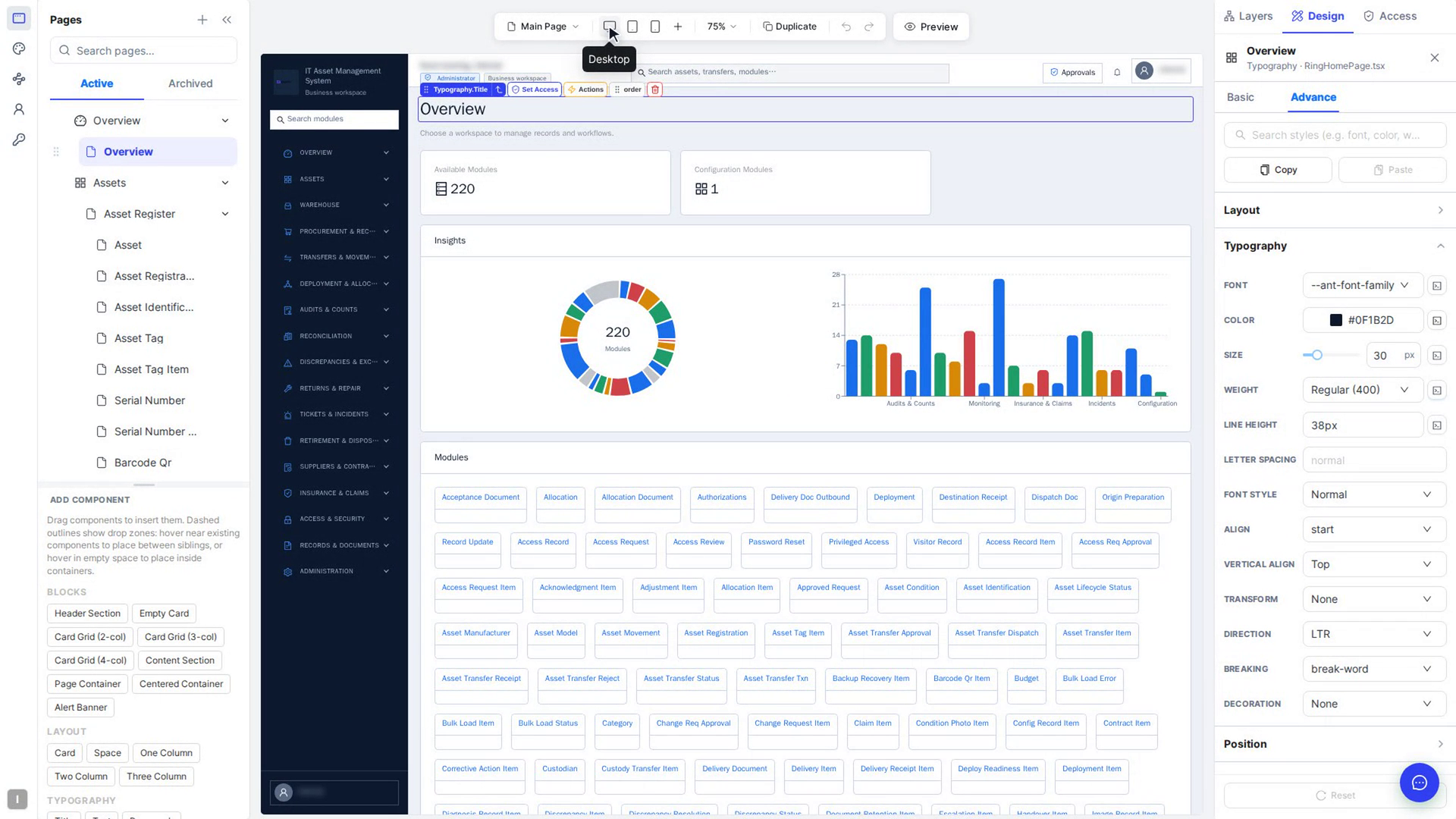
Design for desktop, tablet and mobile
Per-screen props and styles, inheriting, custom breakpoints.
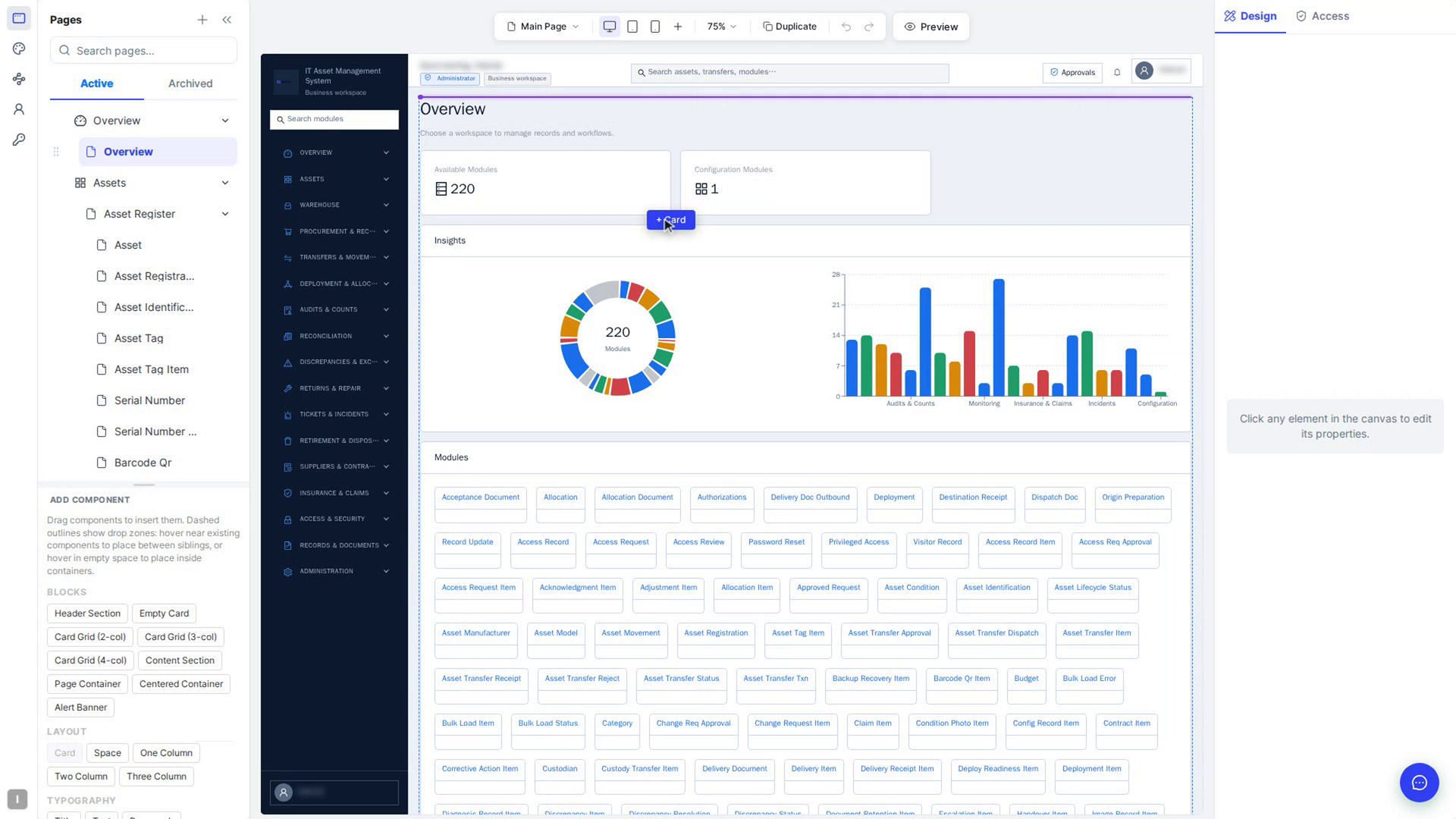
Drag and drop components
Insert from the palette, move on the canvas, reorder precisely.
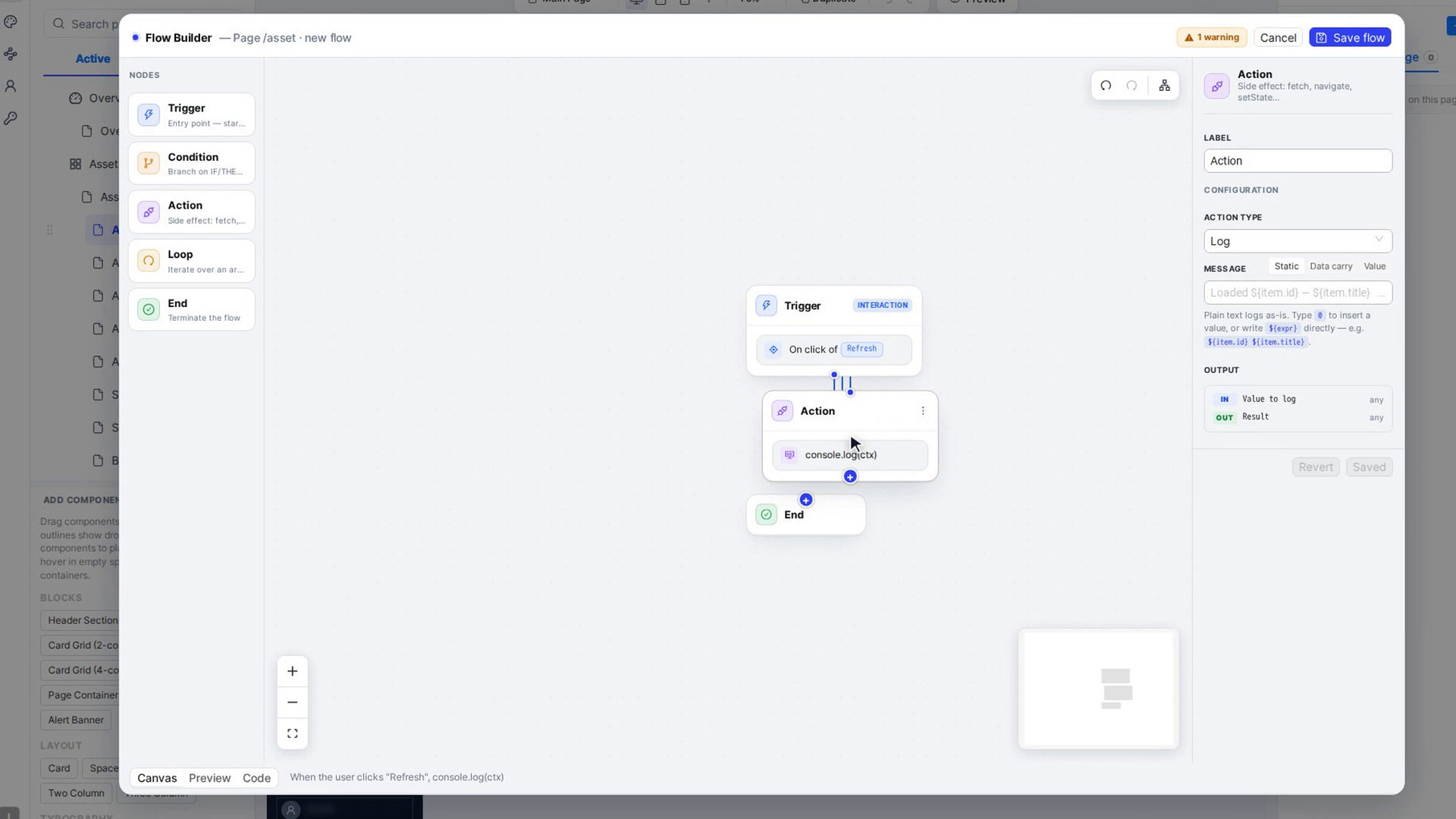
Make elements do things with Actions
Build a flow in the Flow Builder: trigger, actions, save.
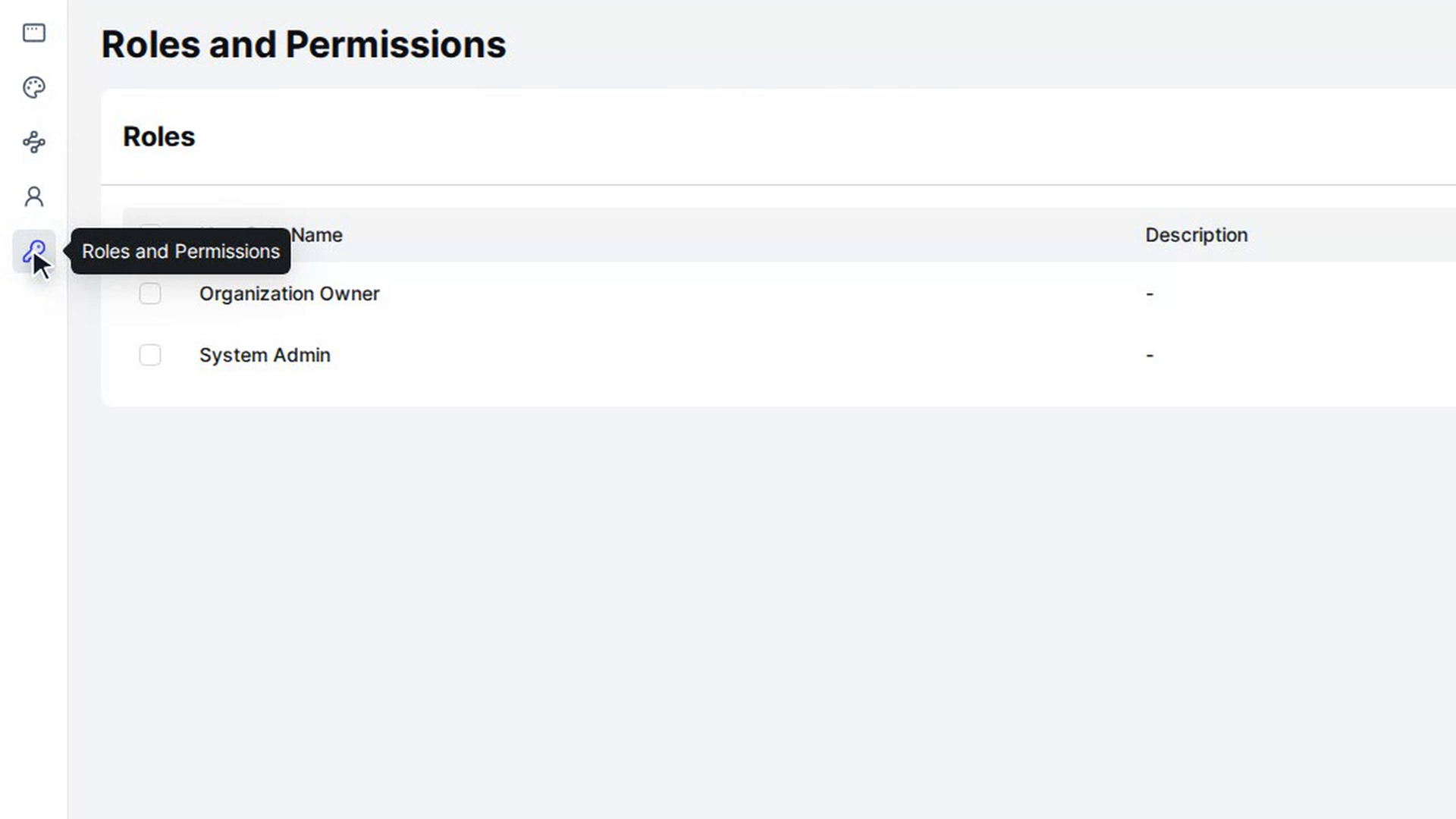
Roles and permissions
Create roles, set page and element permissions, assign members.
AEU credits
Understand, buy and track your AI execution units.
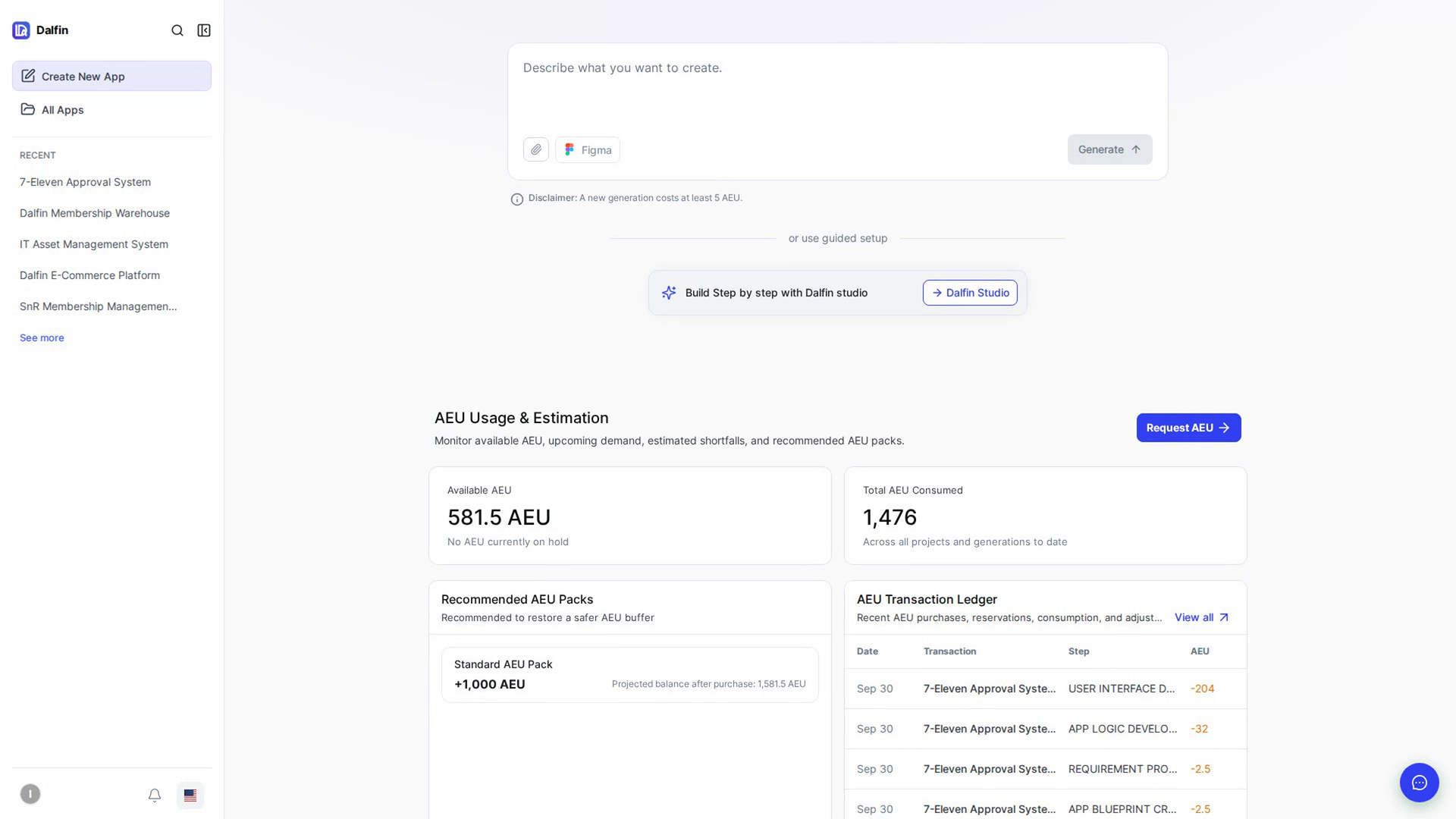
What AEU are and how to check your balance
Learn what AEU credits are and see how many you have.
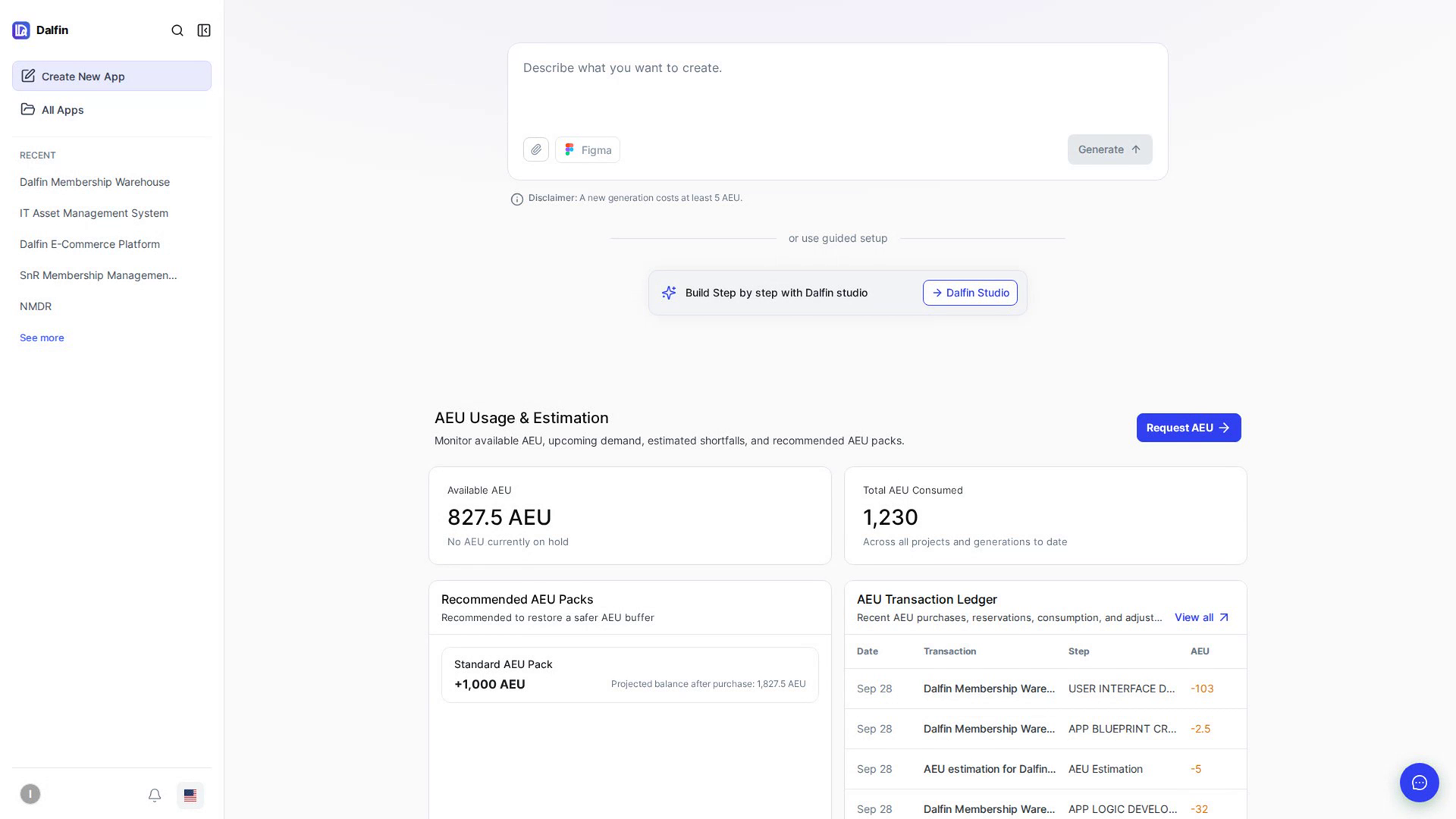
Buy an AEU pack
Add AEU to your workspace by choosing a pack.
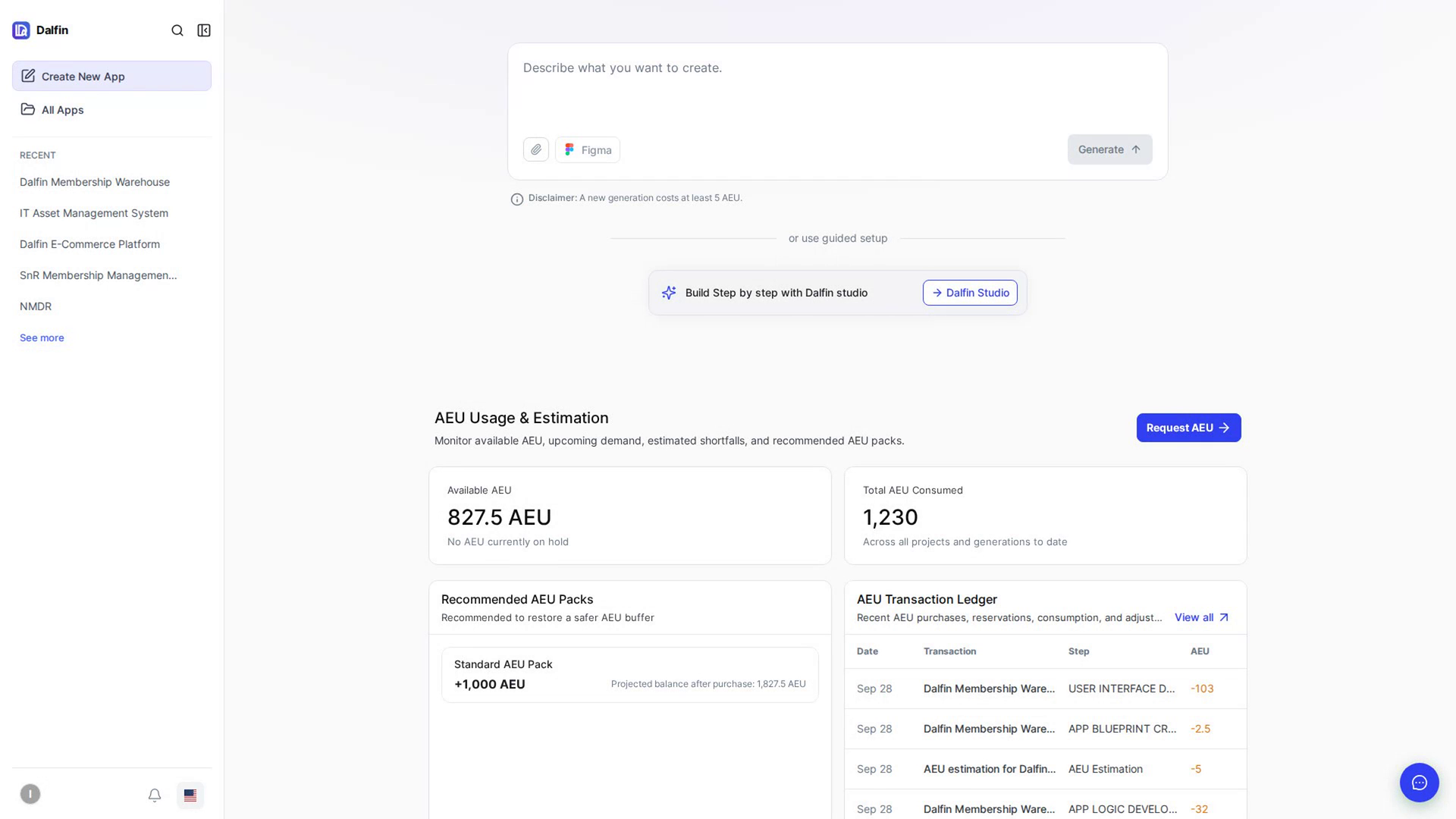
Request a custom amount of AEU
Ask for a custom amount of AEU; an admin approves it.
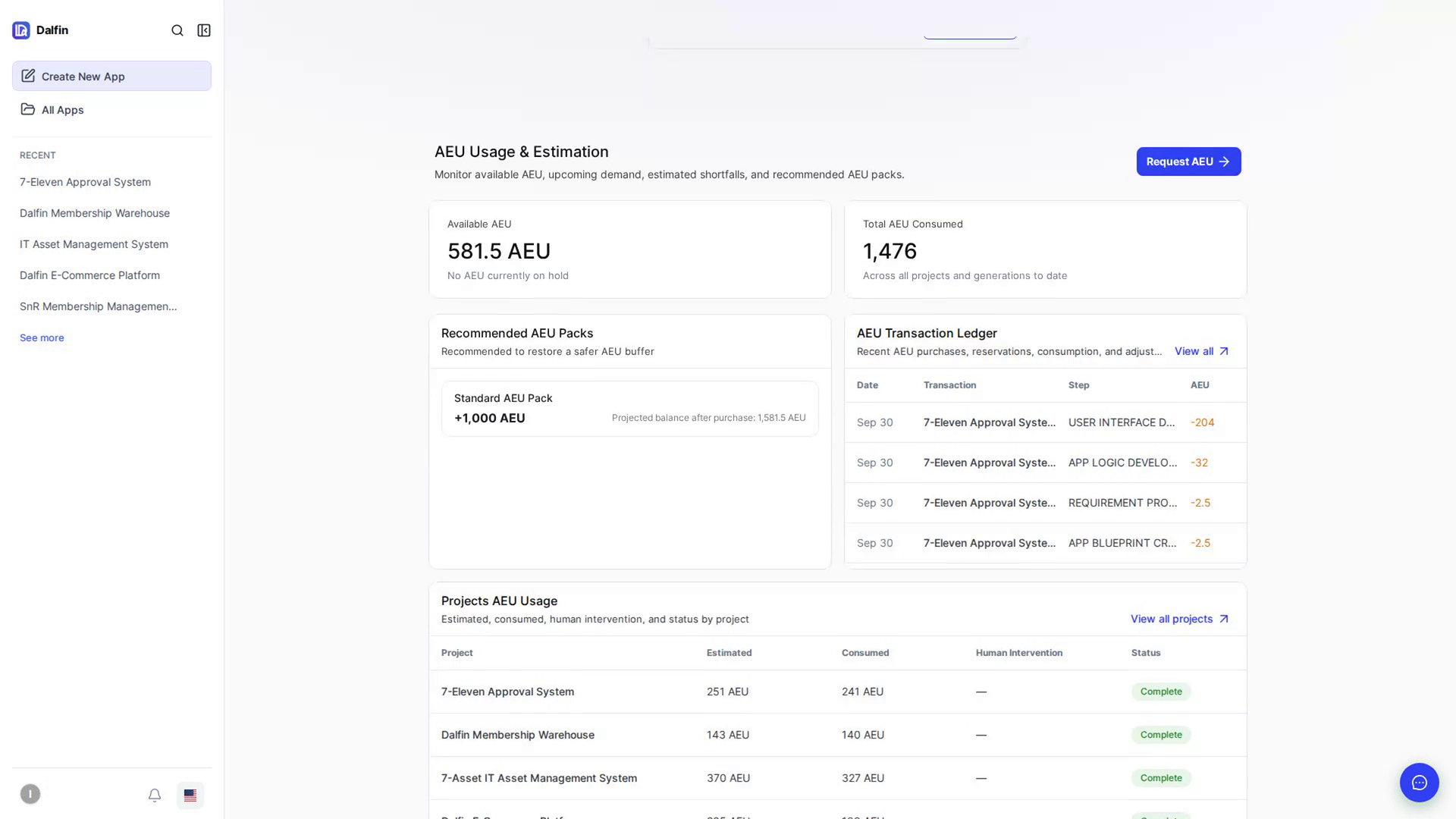
AEU transaction ledger
See every AEU purchase and use.
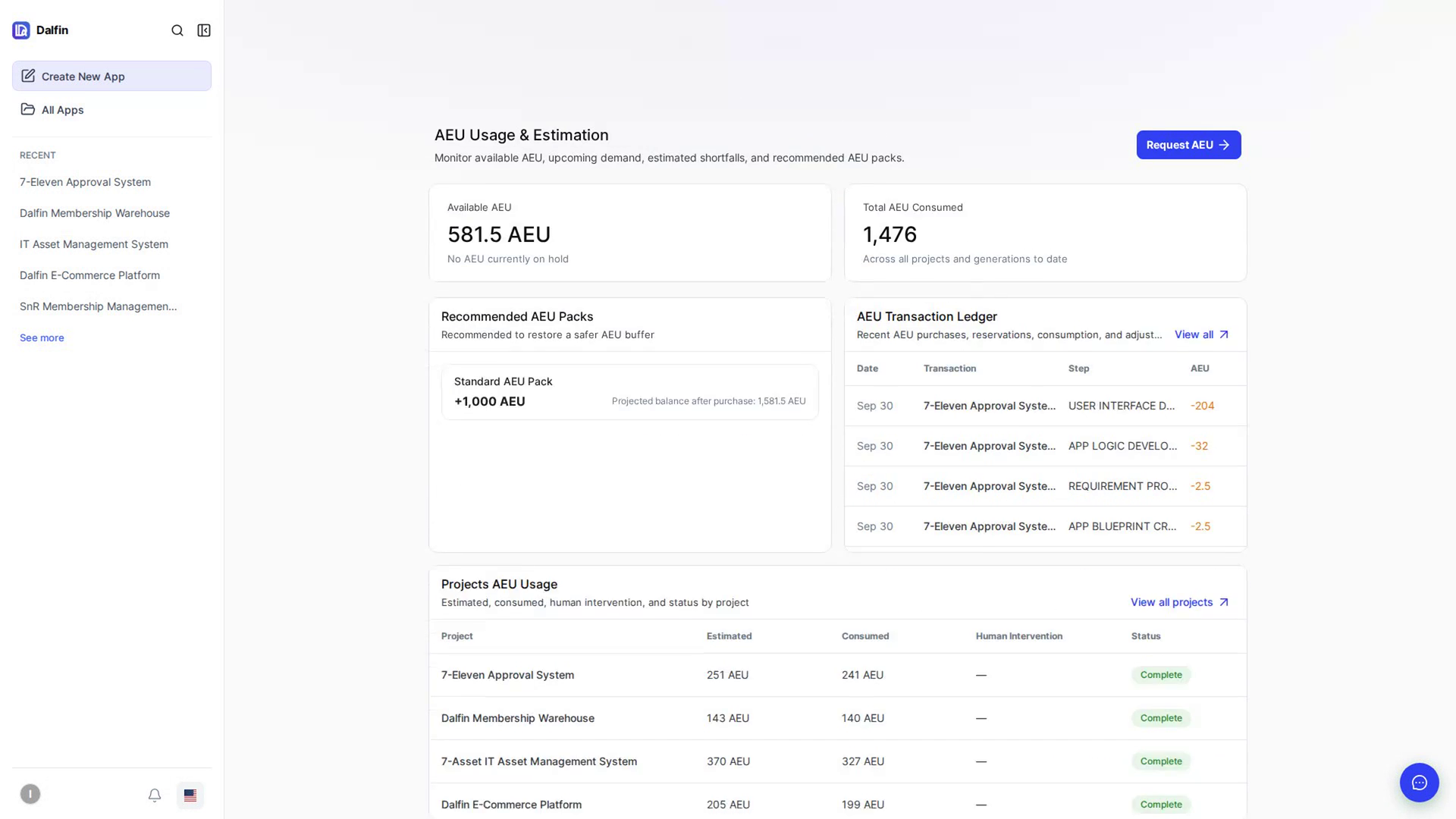
AEU used by one app
See how many AEU building an app used.
Using your generated app
What comes with every app Dalfin builds.
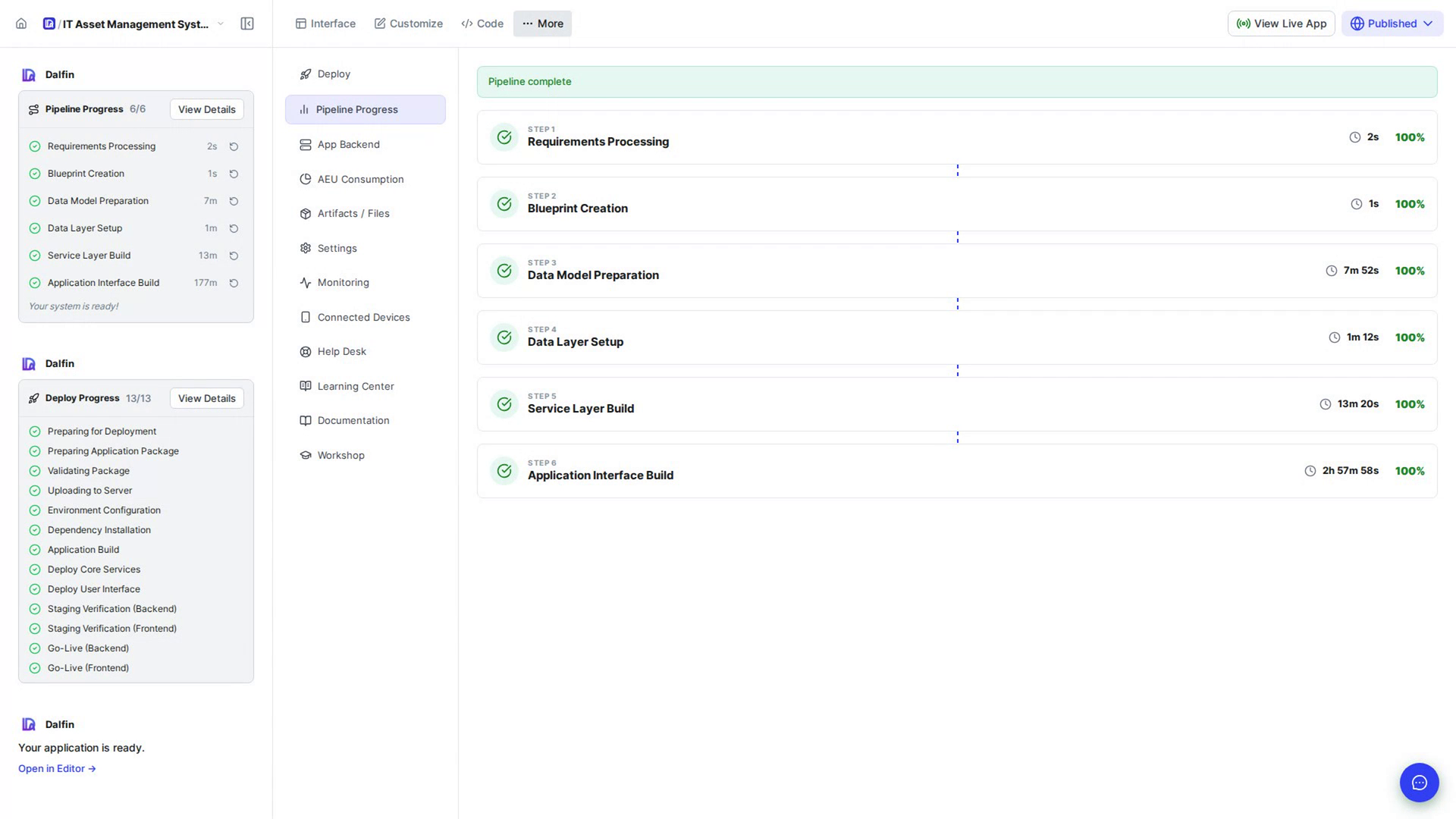
What every generated app includes
The sign-in, profile and navigation every generated app comes with.
Profile and account
Manage your personal settings and credentials.
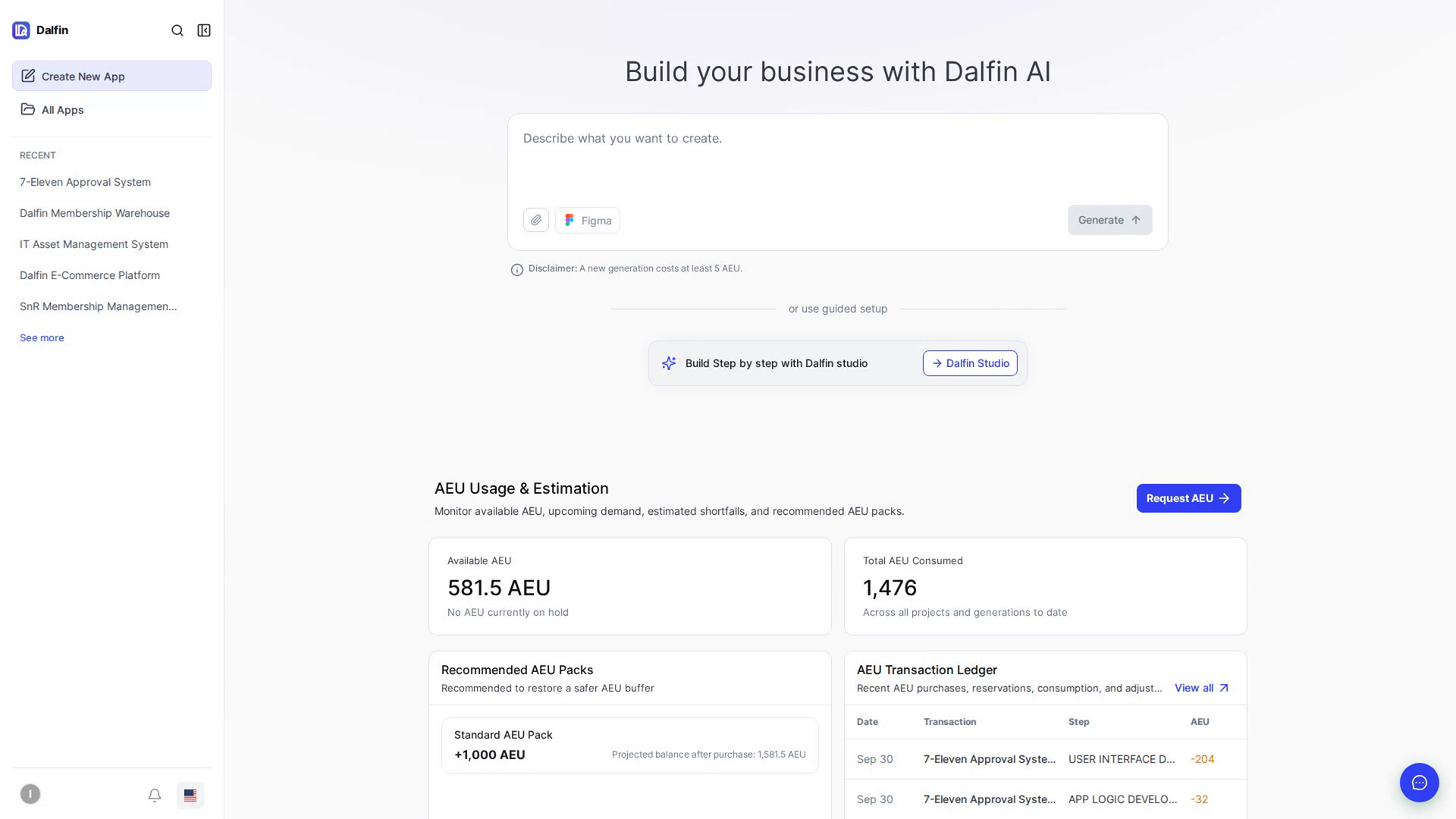
Update your profile
Change your name, phone number and photo.
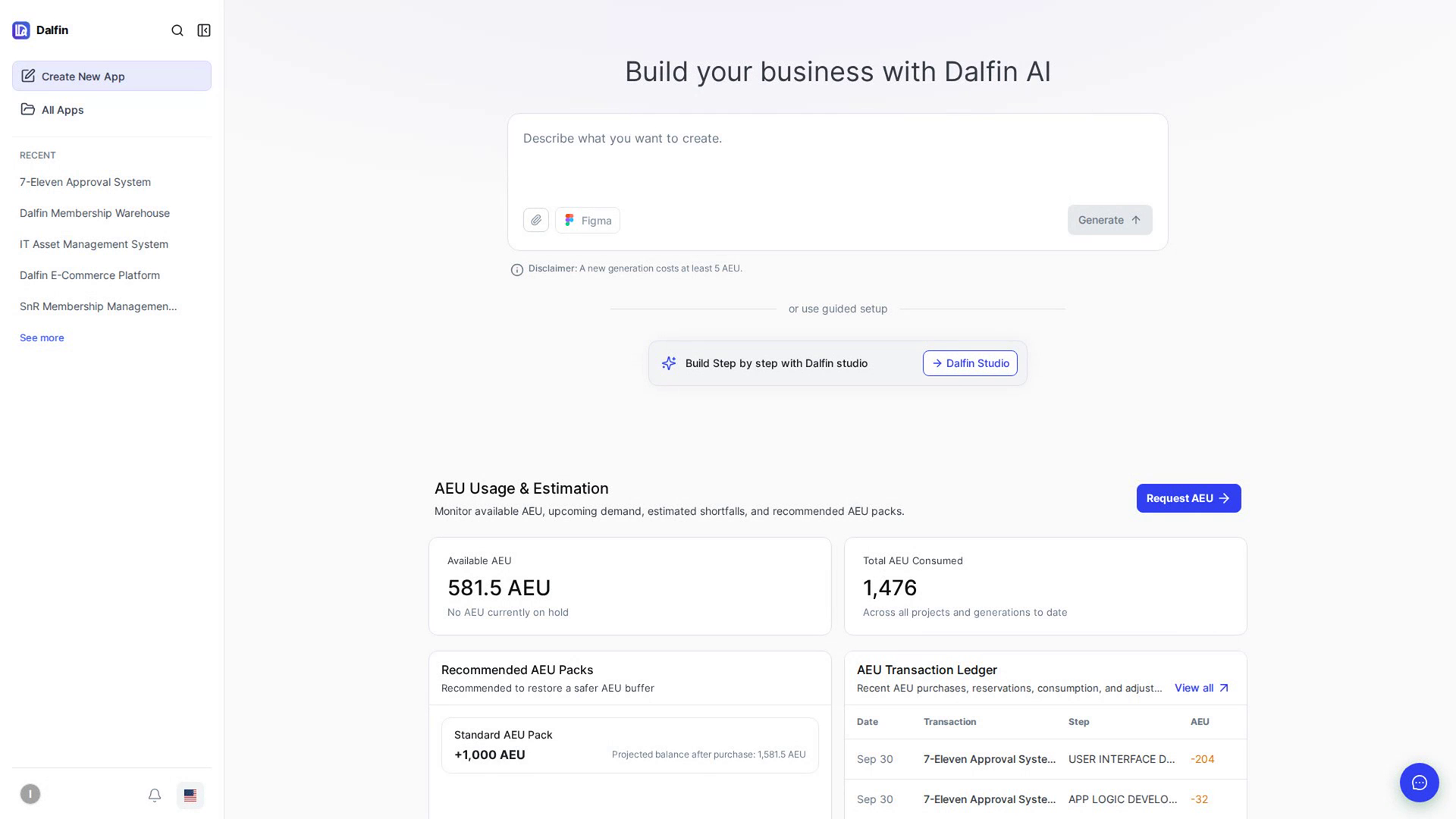
Change your password
Change the password you sign in with.
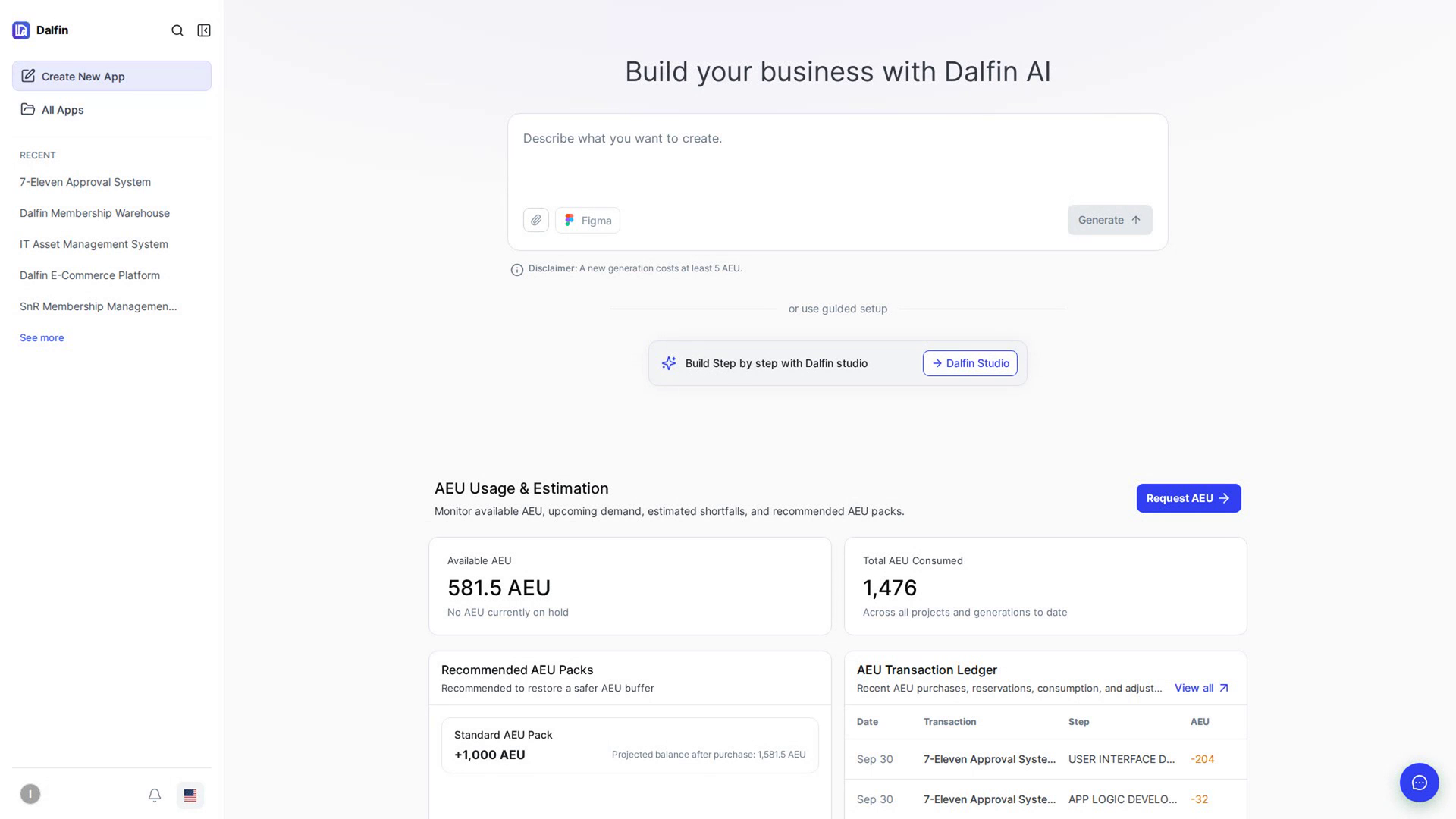
Notifications
Read, filter and clear your notifications.
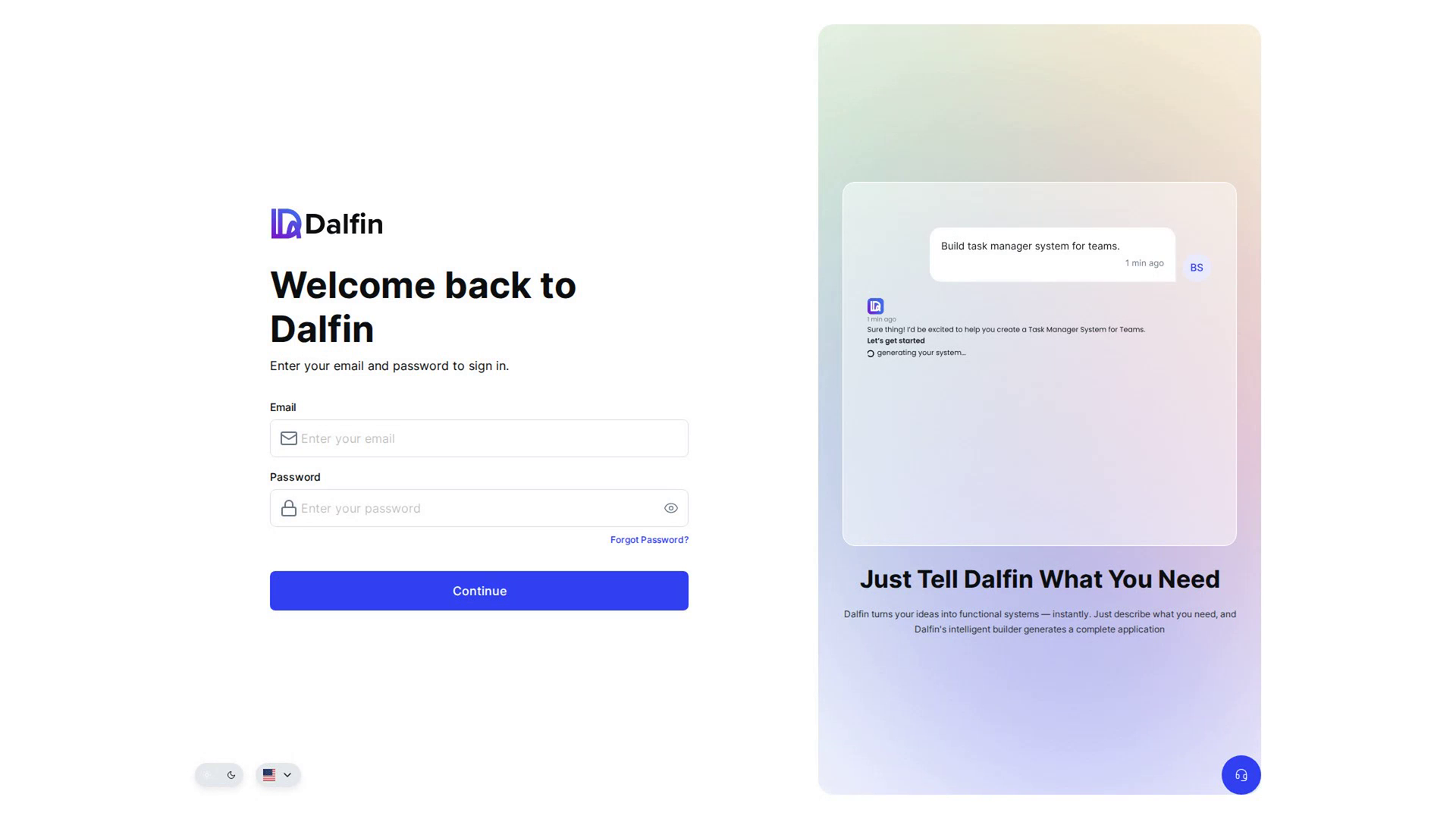
Forgot or reset your password
Get a reset link by email and set a new password.
Request a relevant product demonstration.
We can focus the discussion on your workflows, integrations, deployment requirements and approach to controlled change.
Request an enterprise demo